Free AI Image Generator Online
Use Cases of GoEnhance AI Image Generator
Text to Image
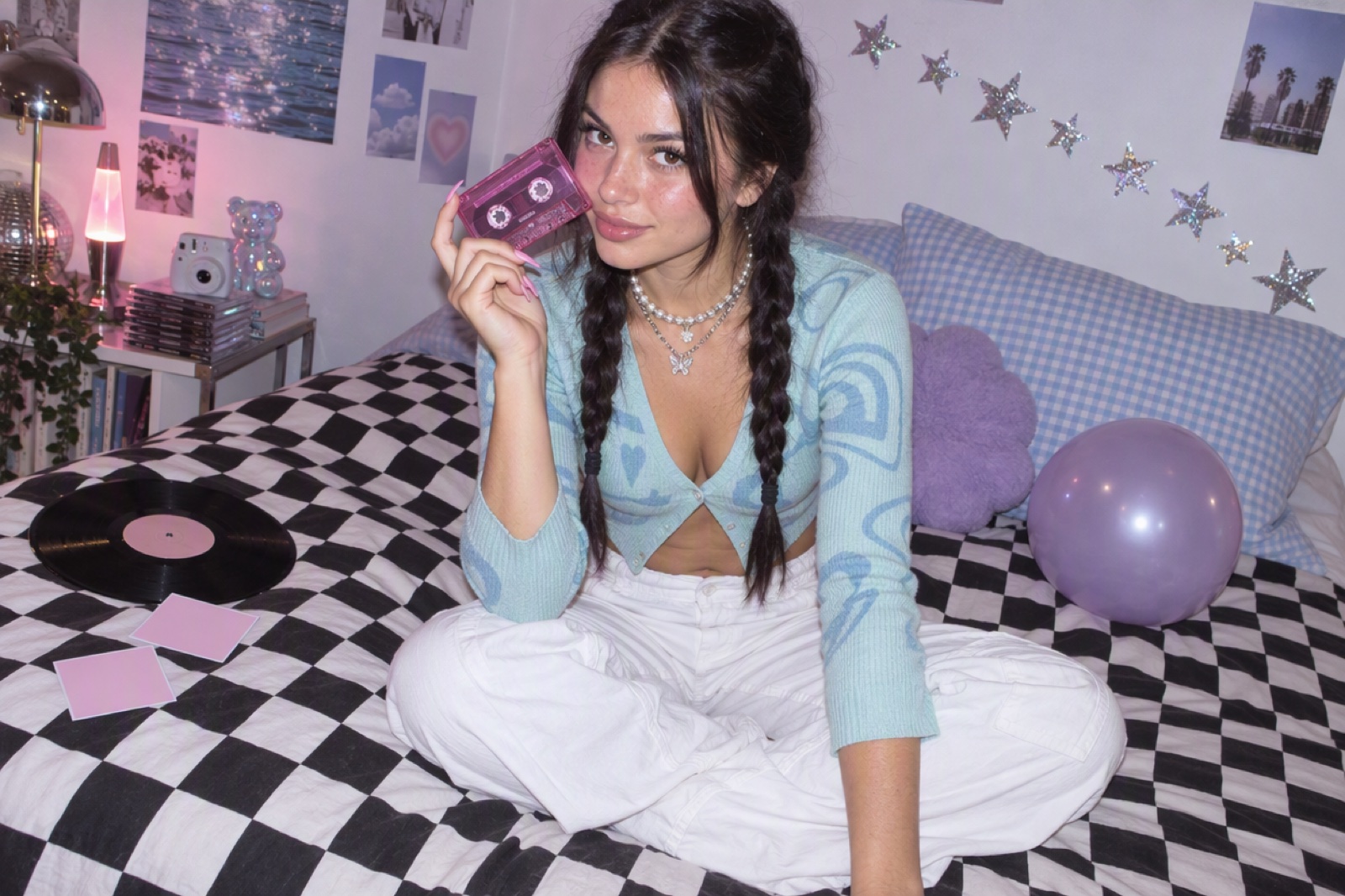
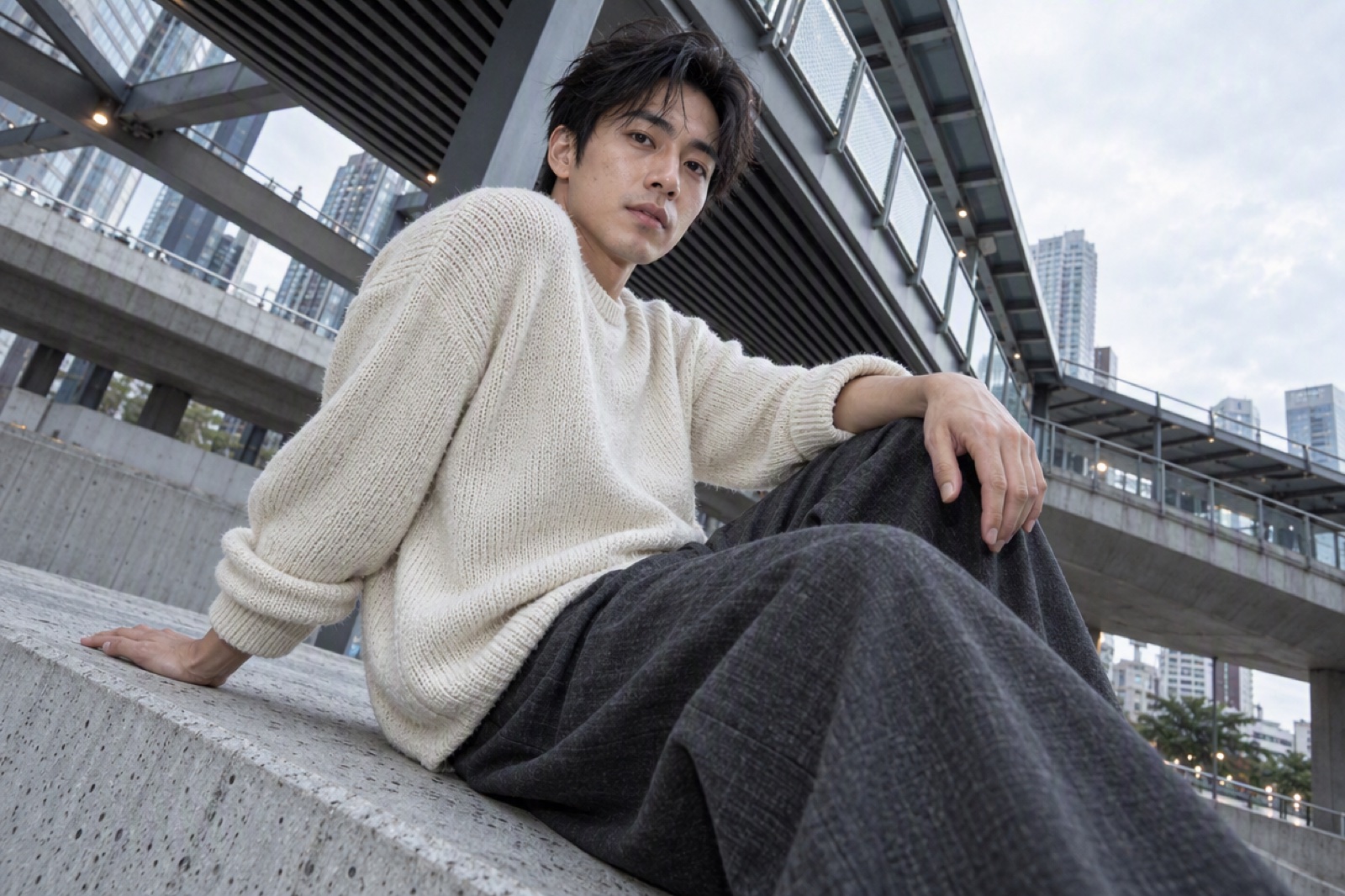
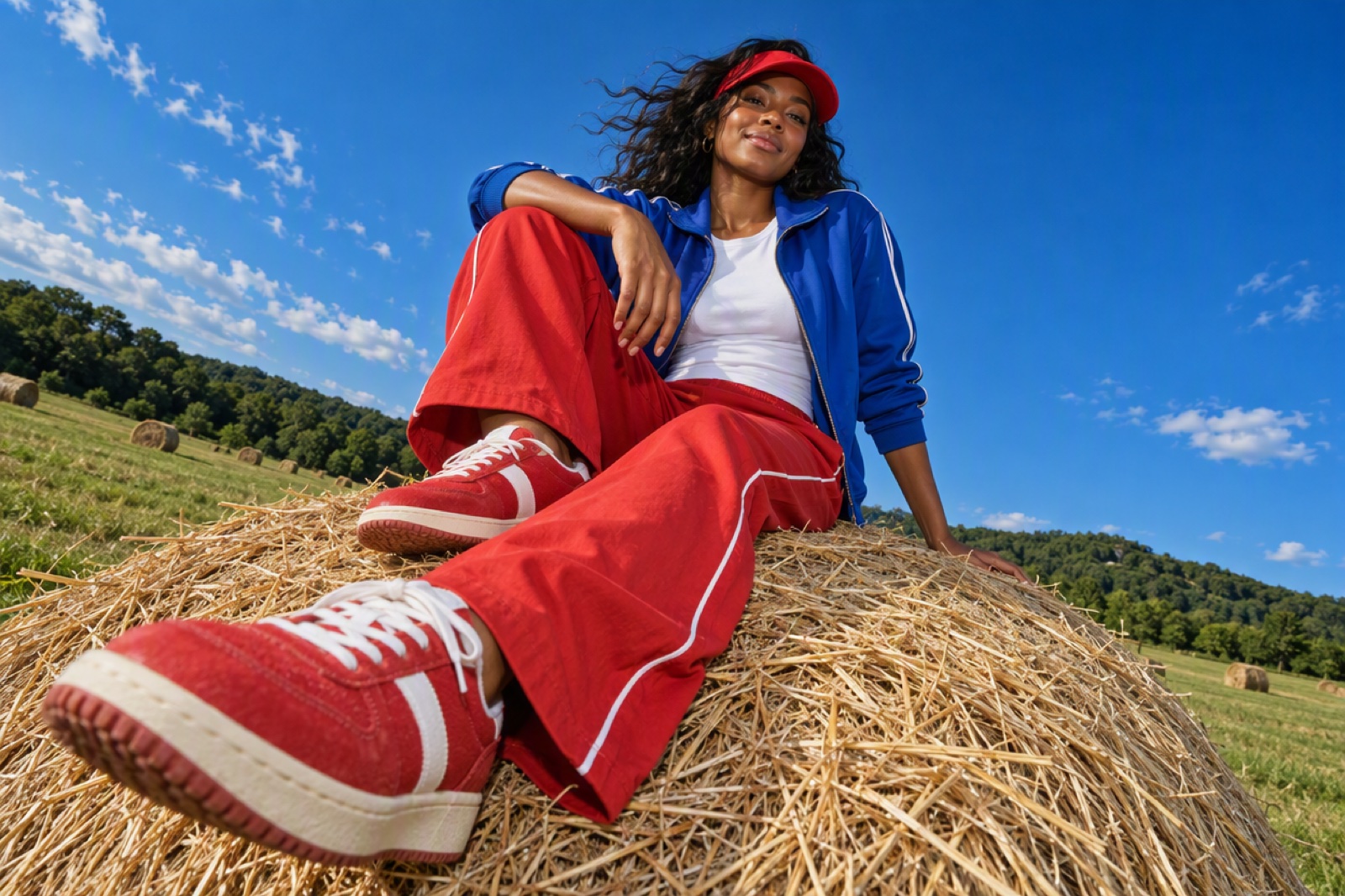
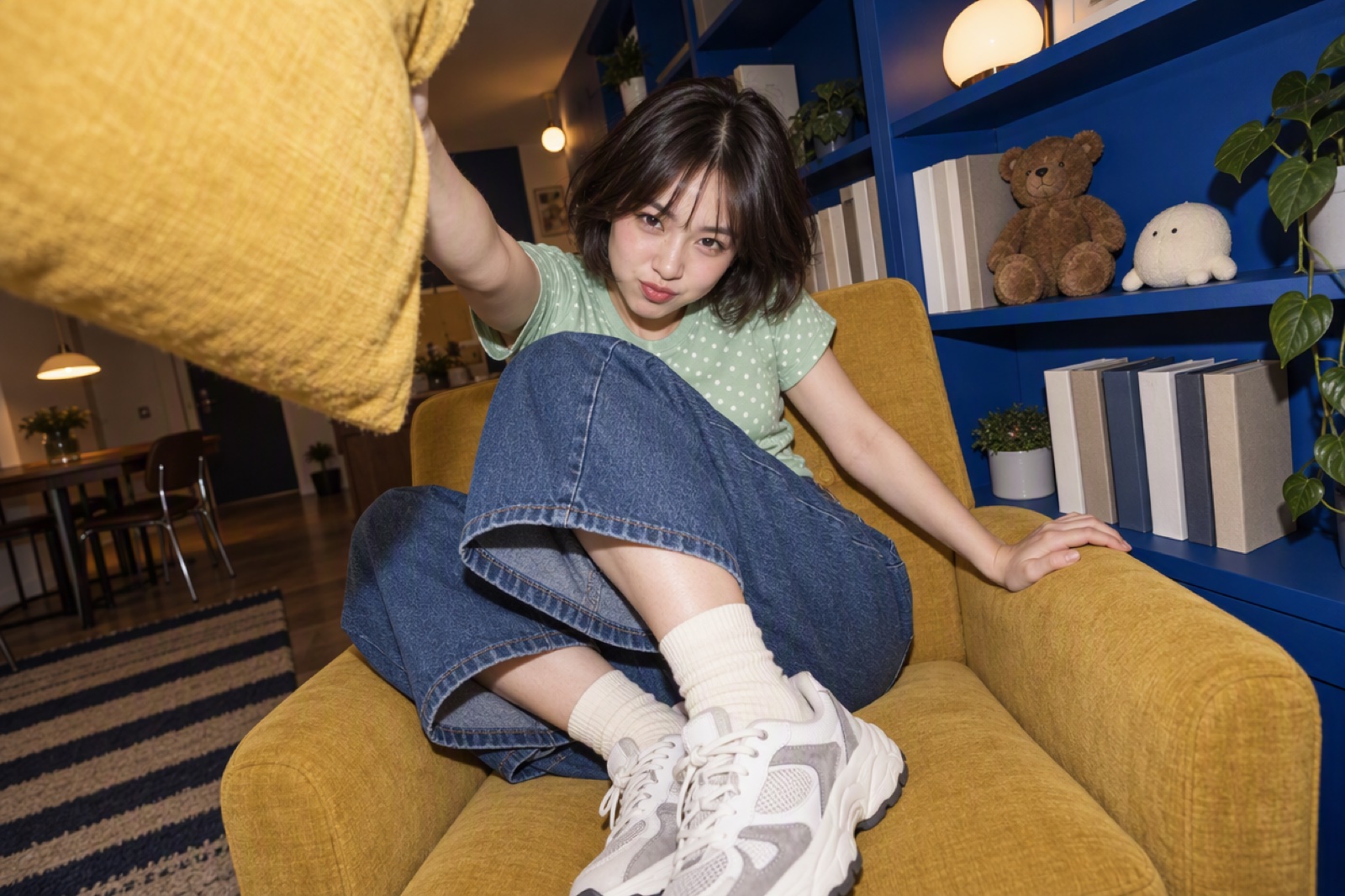
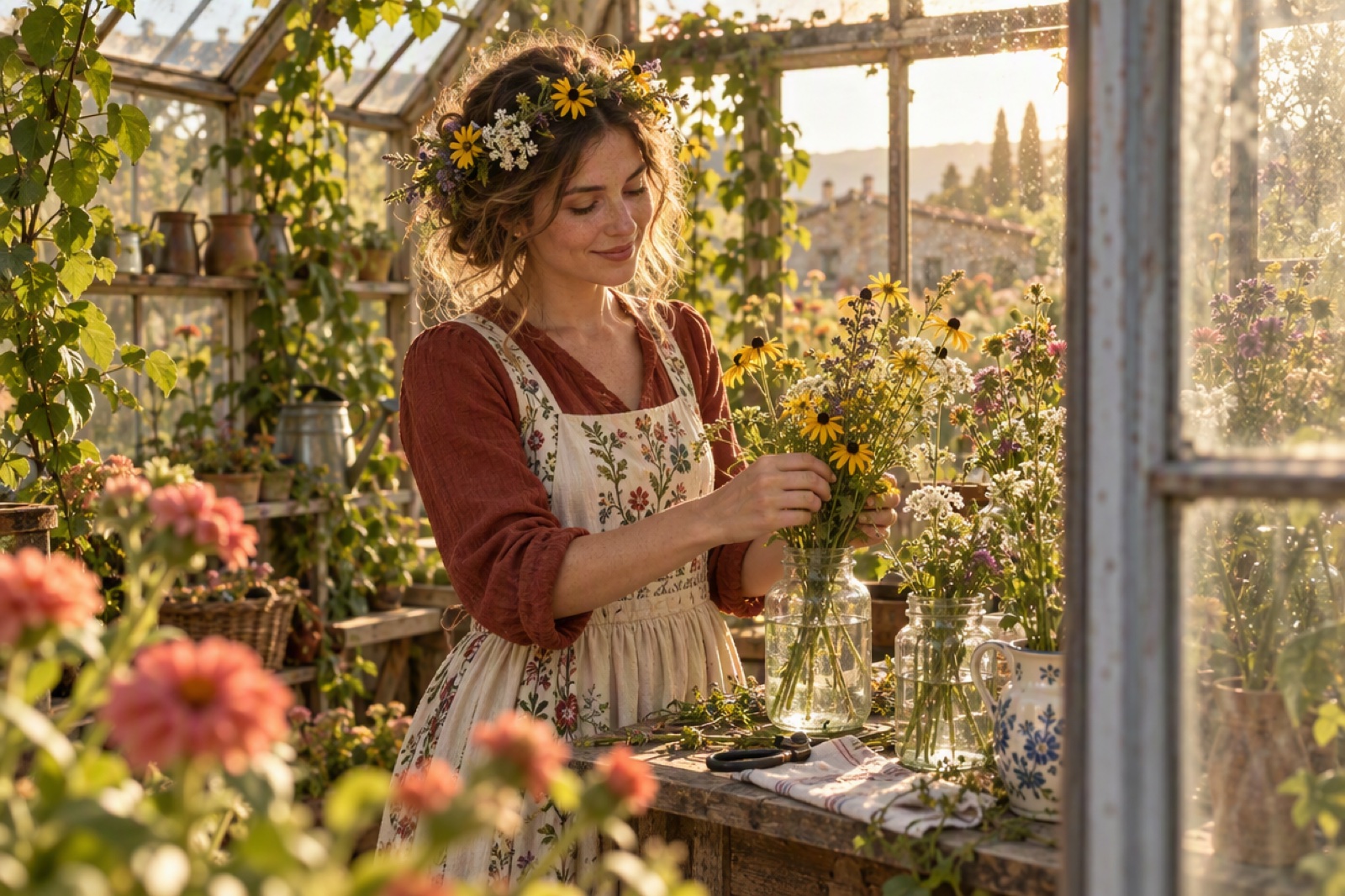
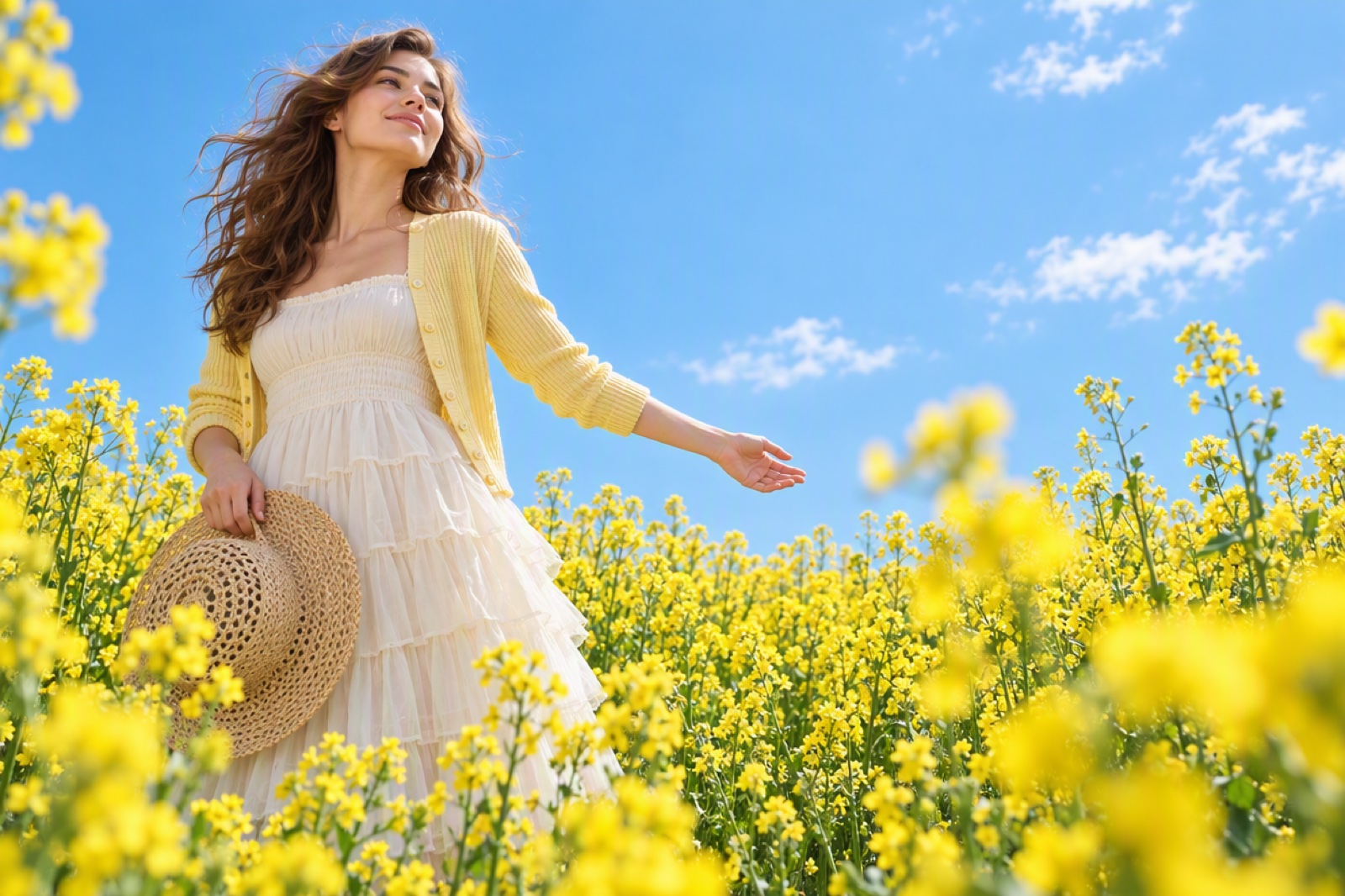
Generate stunning visuals from text prompts using models like Flux.1, Stable Diffusion 3, DALL·E 3, Ideogram, Recraft and more. Supports ultra-high quality output, real-time generation preview, and dozens of artistic styles such as Realistic, Pixel Art, Clay, Pop Art, Illustration, and Expressionism.
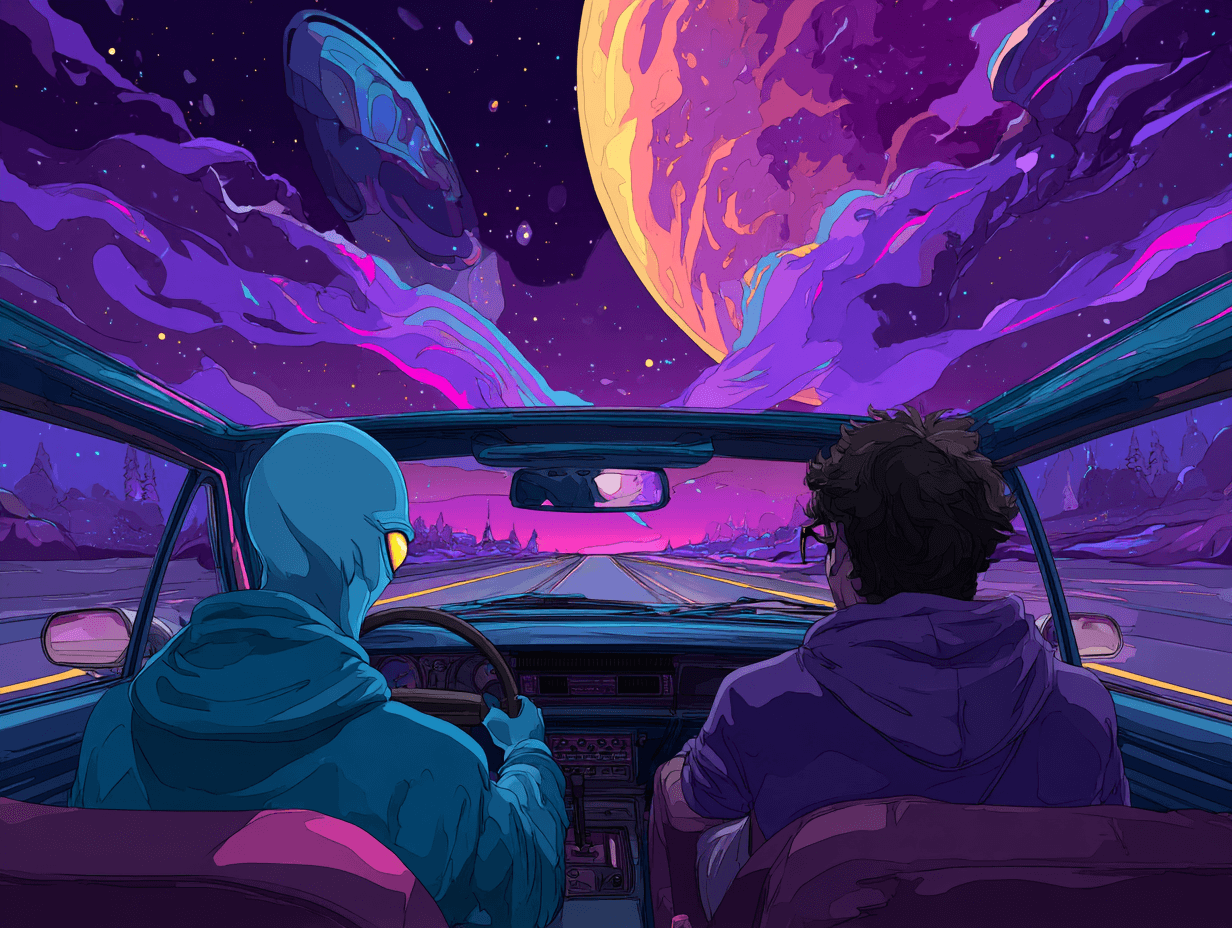
Image to Image & Enhancer
Transform your photo into creative artworks using AI restyling tools like the AI Doll Generator, or swap faces with Image Face Swap. Enhance clarity with the Image Enhancer, which supports sharpening, noise reduction, and upscaling up to 4K resolution. Ideal for print, social media, and visual storytelling.
Complex Scenes, Clear Results
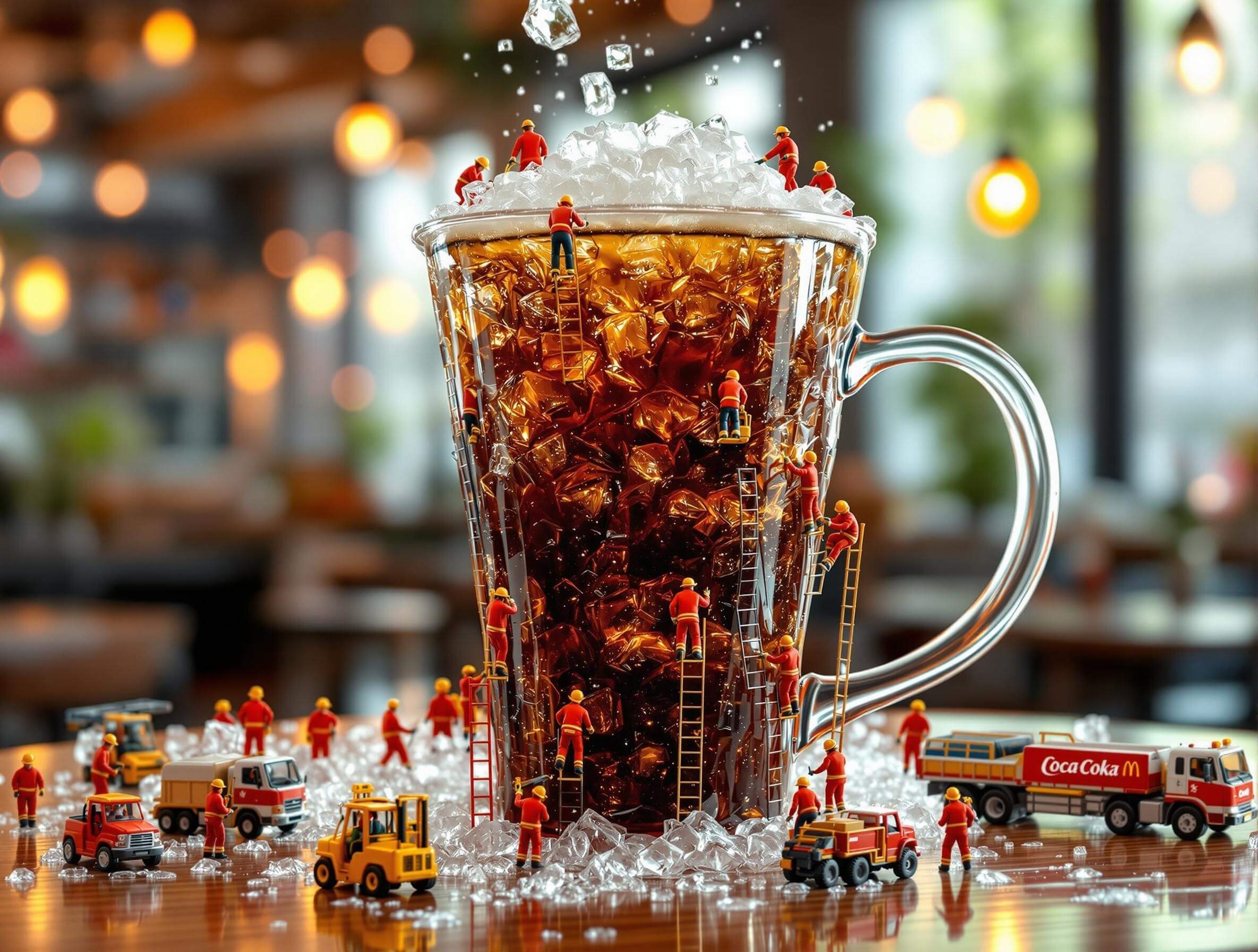
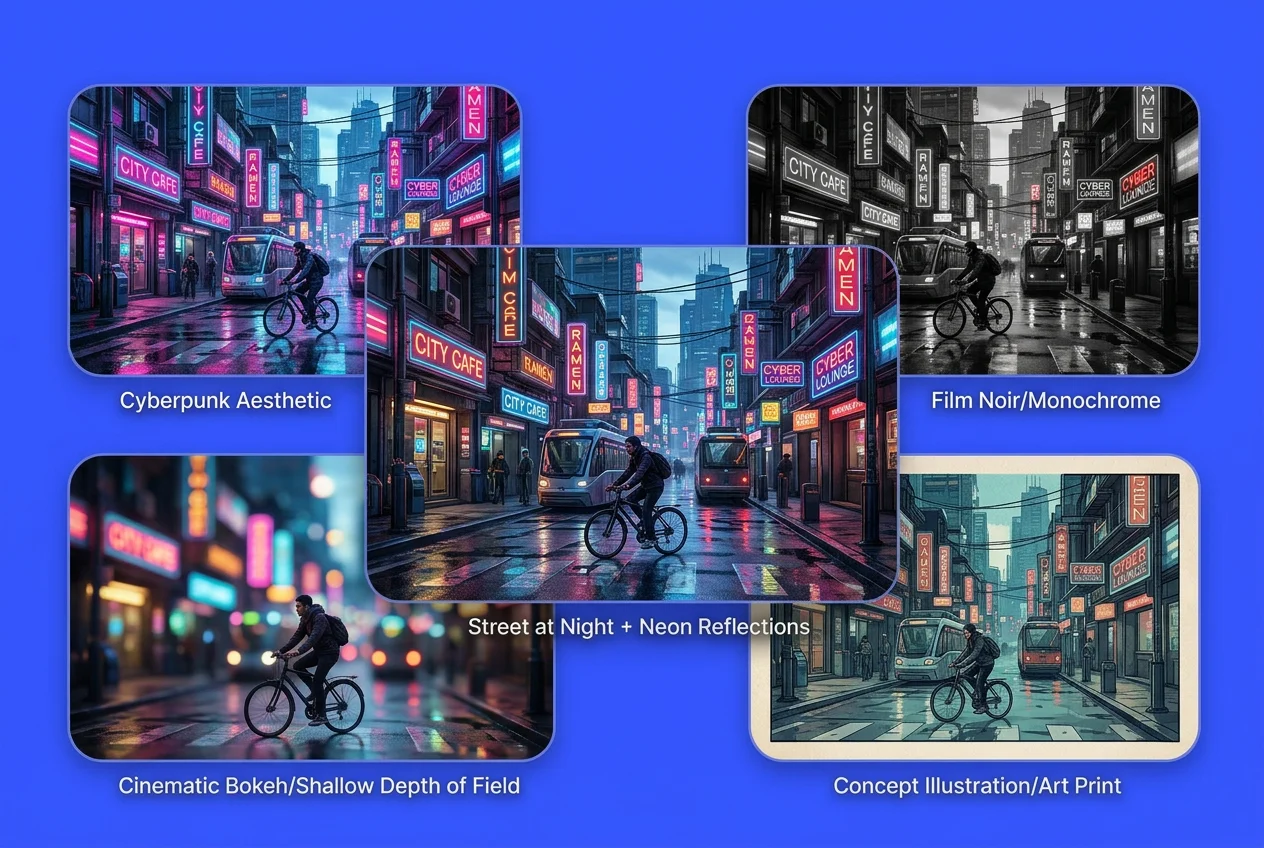
Understand complex prompts while preserving the core concept. You can describe multiple subjects, background details, and lighting (like “street at night + neon reflections + shallow depth of field”), and the output still stays on-brief—less random drift, more faithful composition.
Switch Models to Match the Job
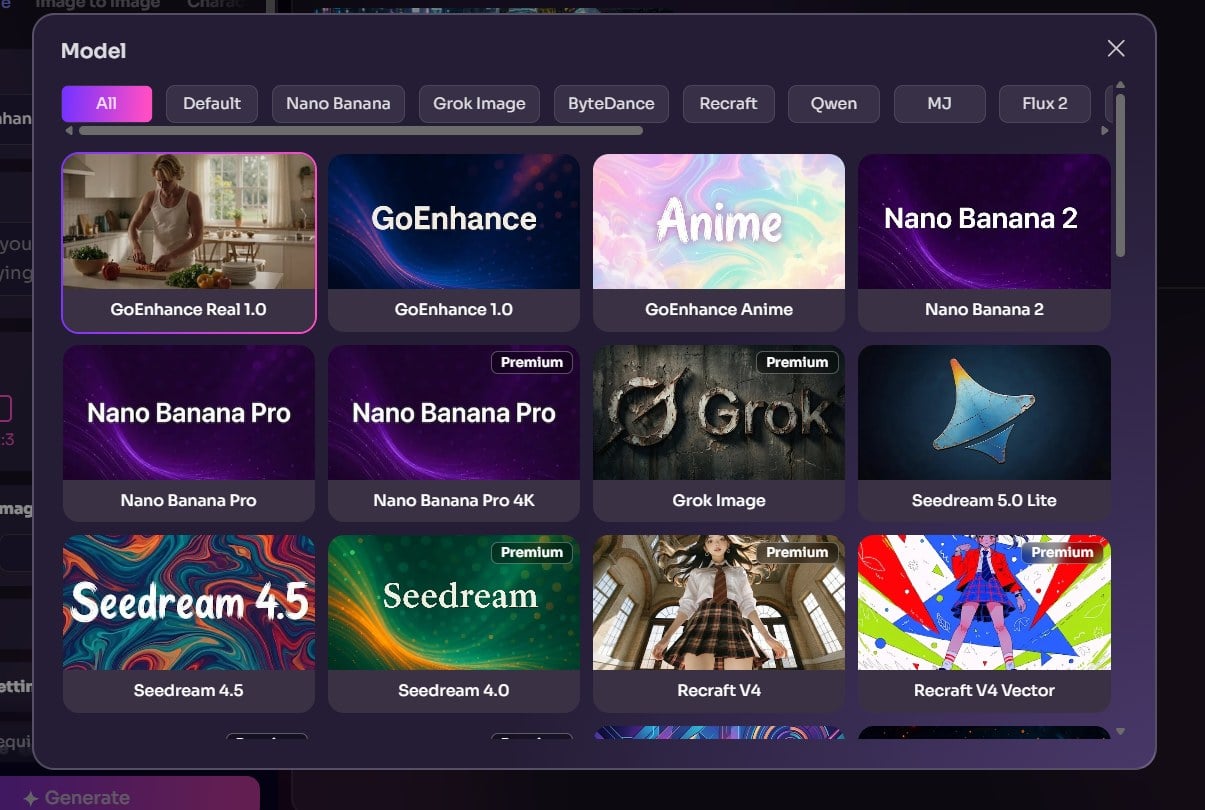
Choose a model based on what you’re making: Qwen-Image-Edit for clean edits and strong prompt-following, Nano Banana 2 for fast ideation, Nano Banana Pro for higher detail, and 4K options when you need crisp print-ready visuals. Same workflow—different “engines,” better fit per task.
Example Gallery
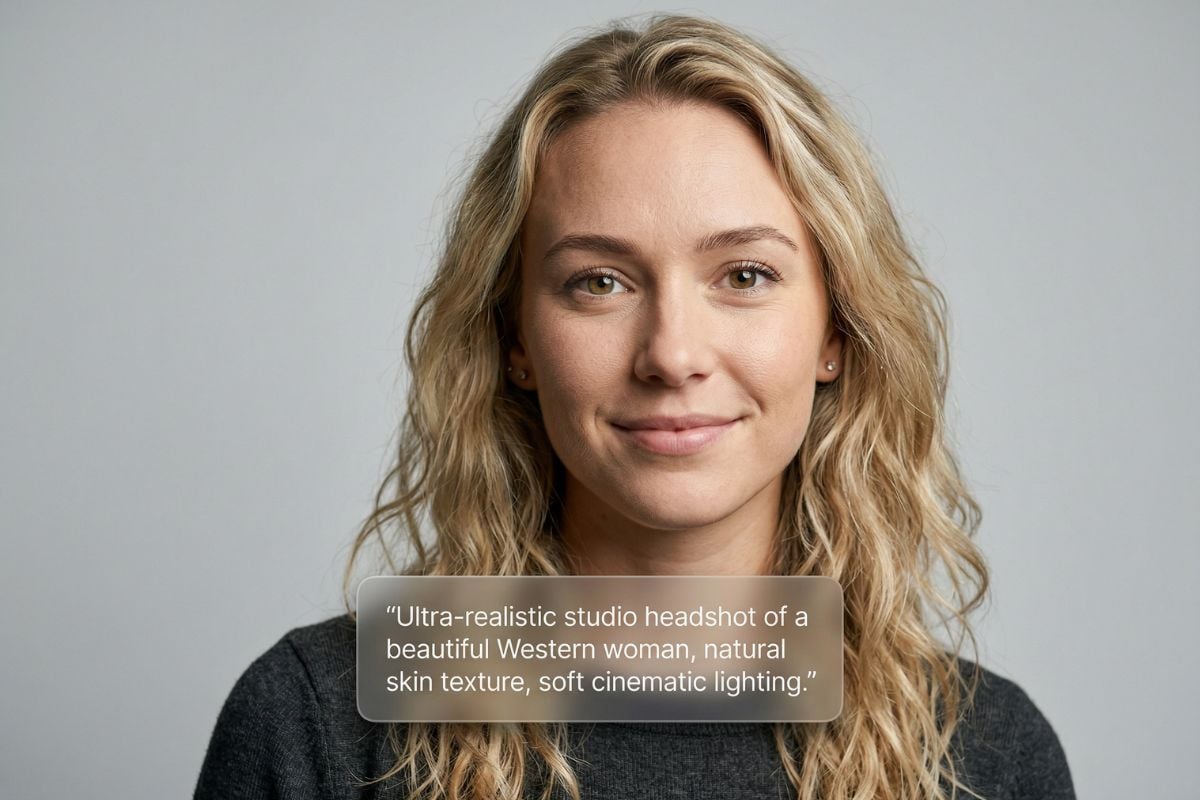
Realistic Photos
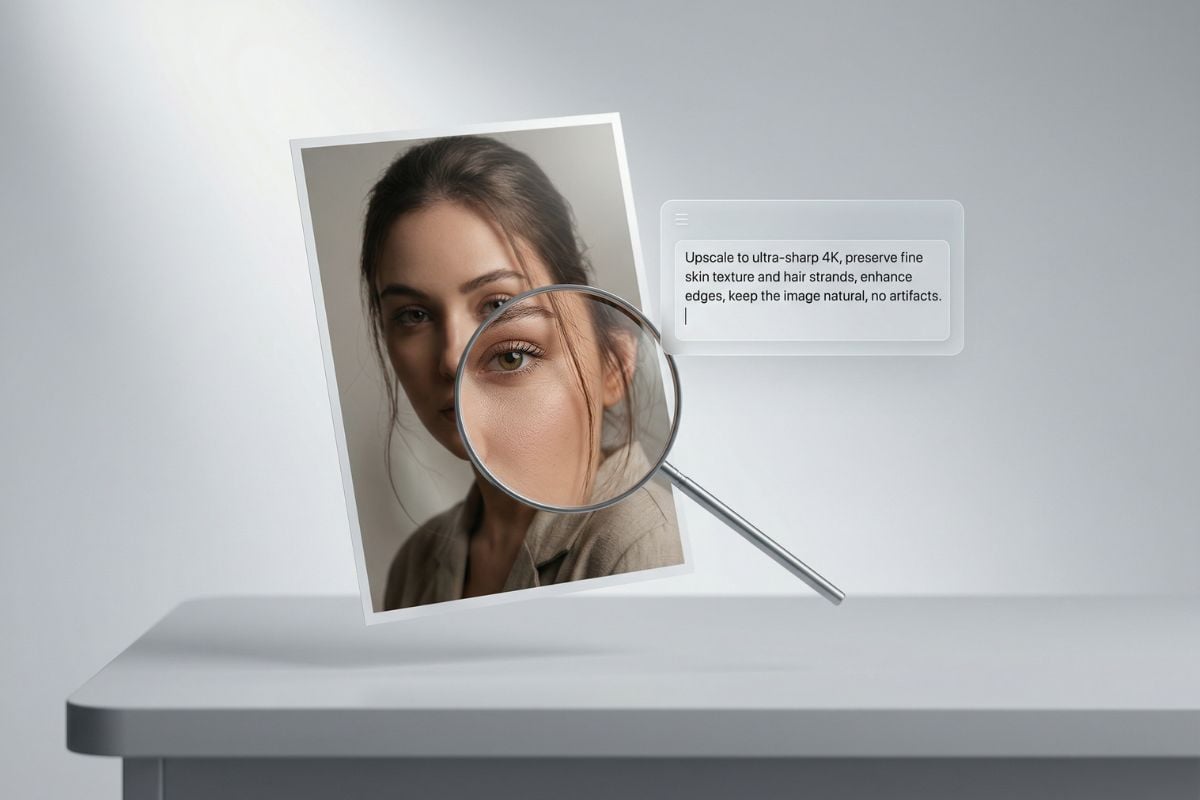
4K Upscale
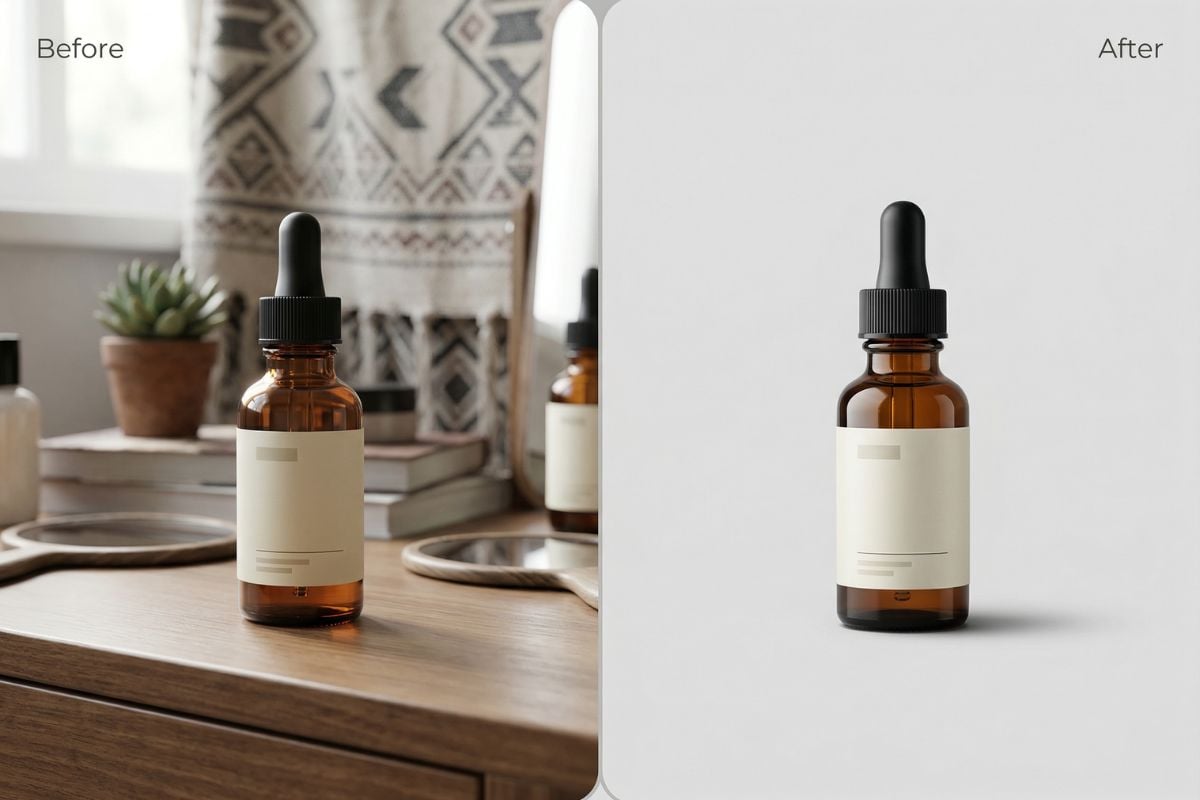
Background Remove
All-in-One AI Image Generator Platform
Explore Our Specialized AI Image Generation Tools
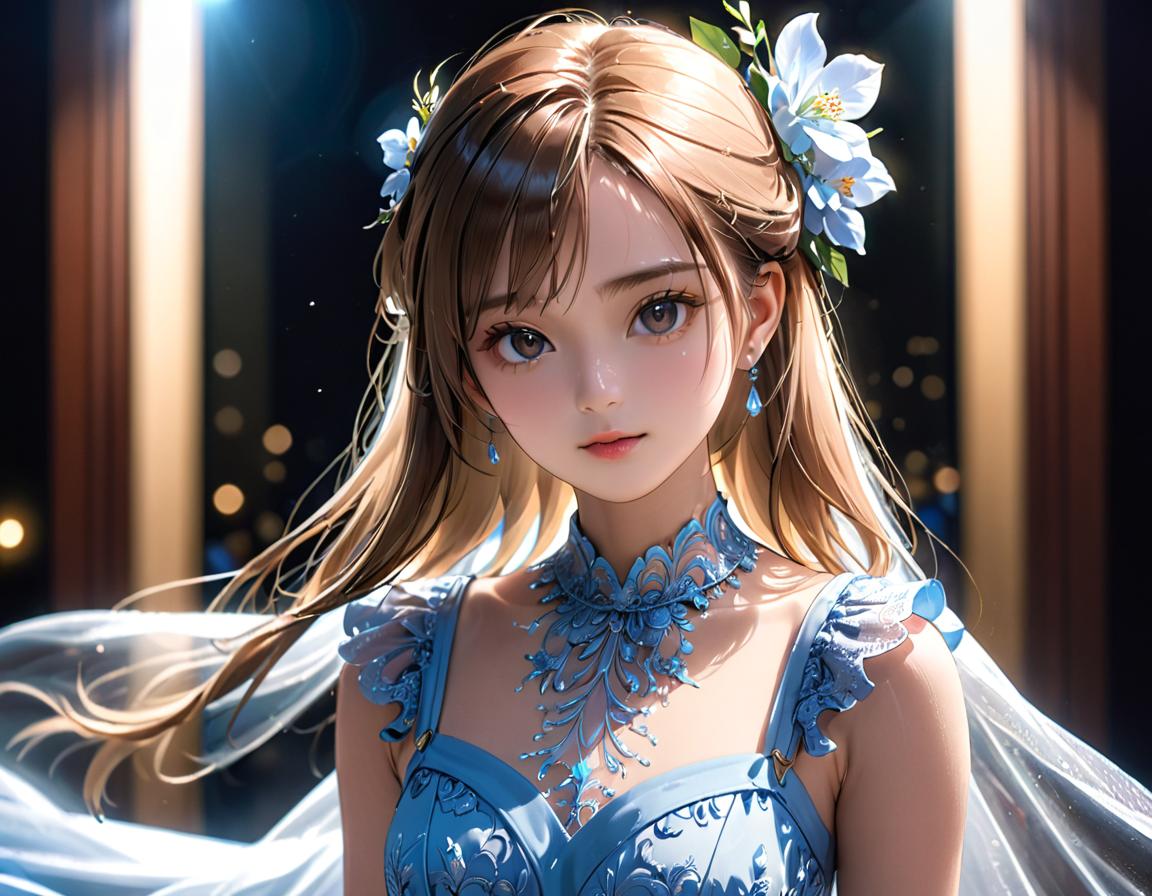
AI Anime Art Generator
Create anime-style art from text prompts. Transform ideas into stunning anime visuals instantly.
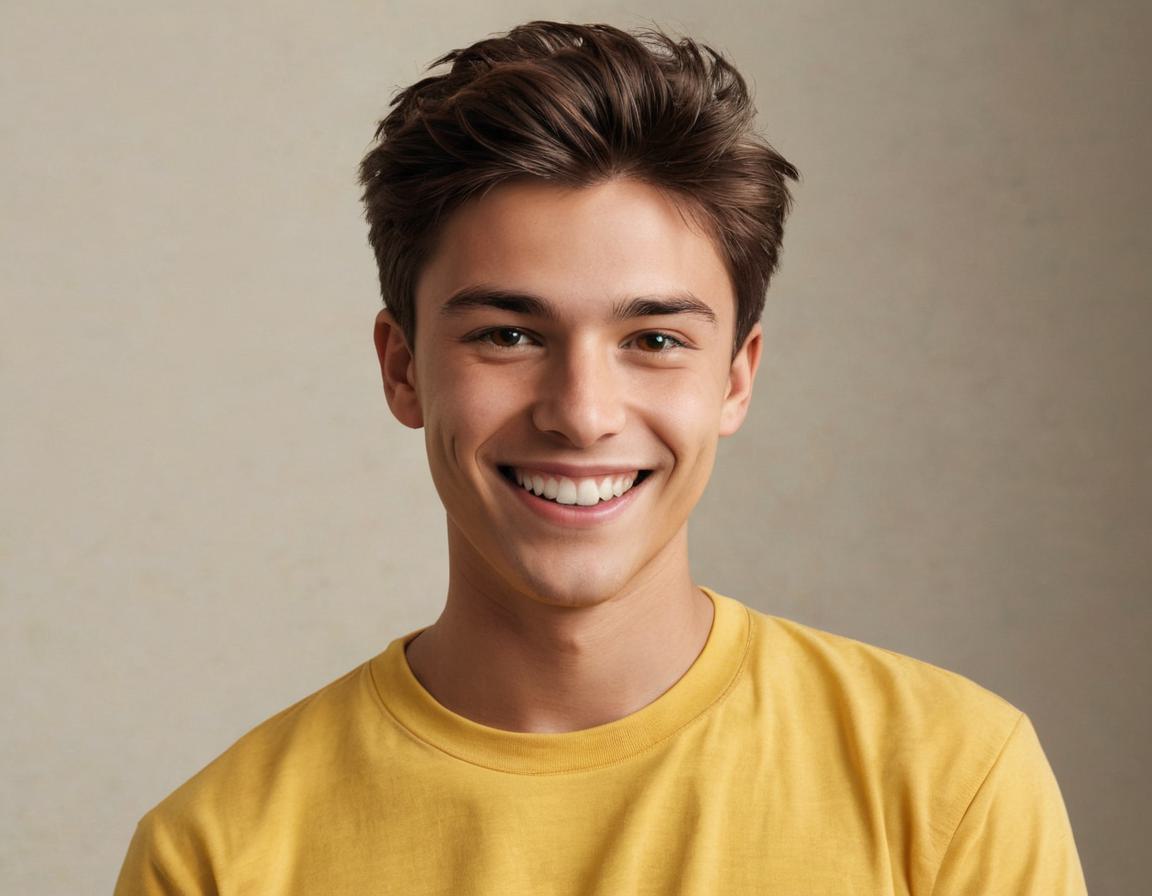
AI Boyfriend Generator
Generate digital boyfriend images from text. Create unique companion visuals with custom features.
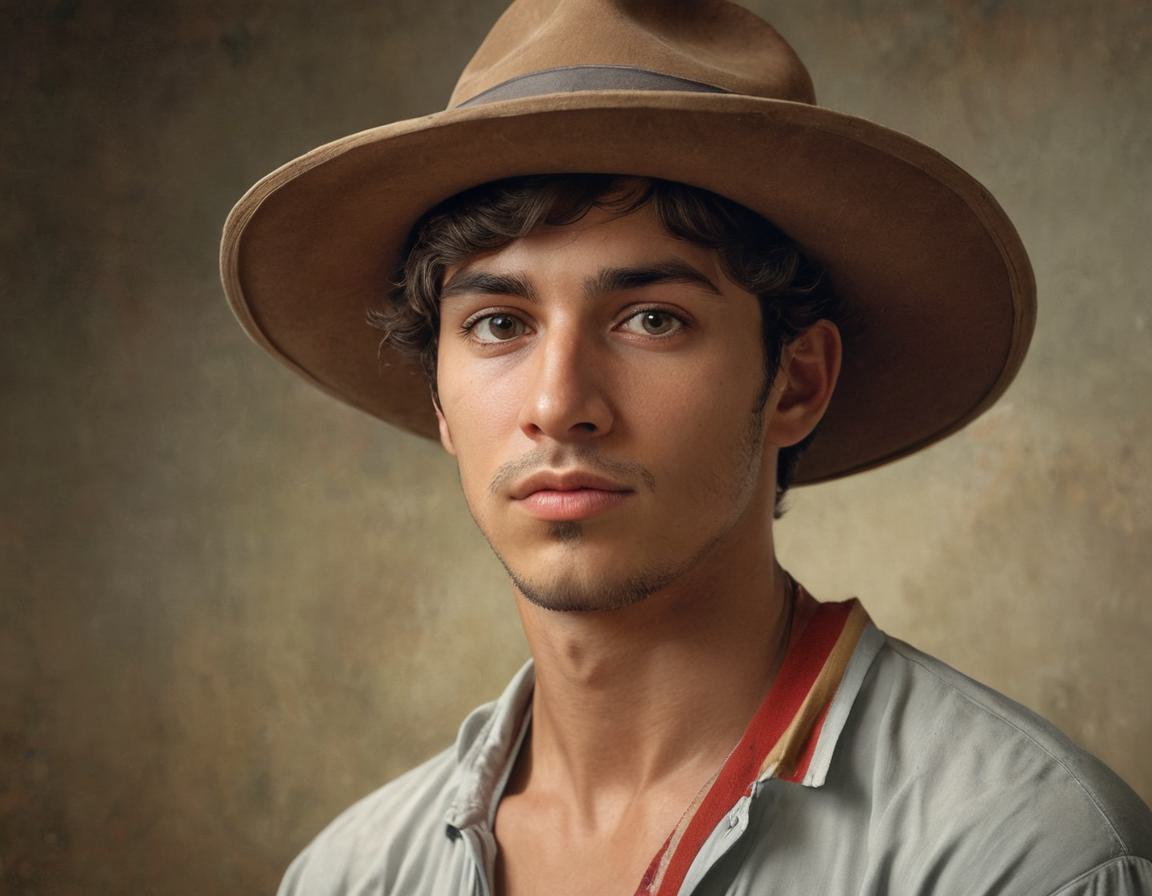
AI Face Generator
Create realistic faces from text descriptions. Generate unique, lifelike portraits instantly.
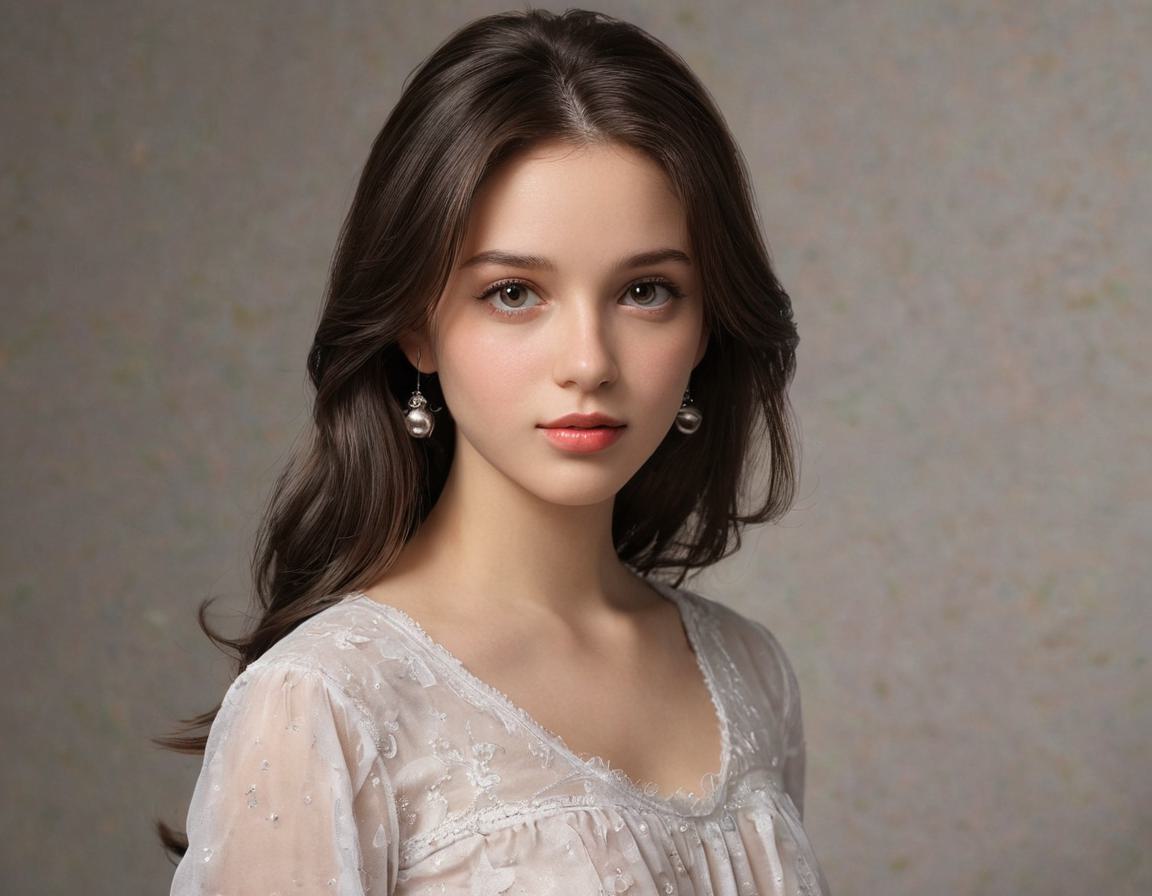
AI Girl Generator
Create female characters in various styles. Design realistic or anime girls from simple text prompts.
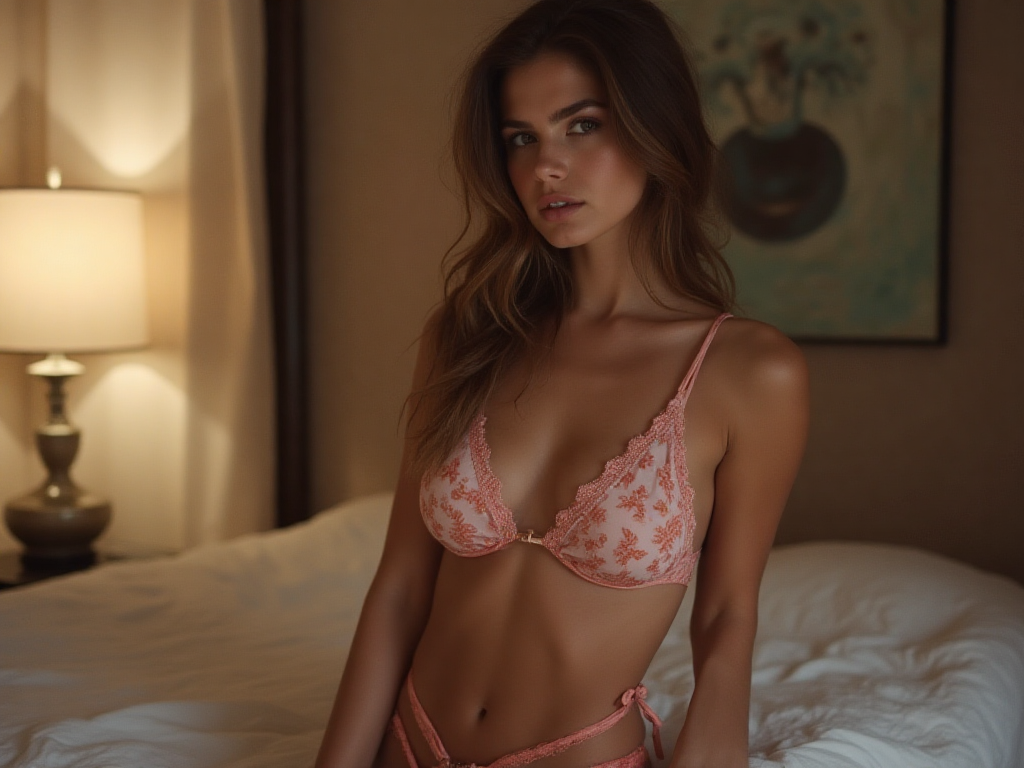
AI Girlfriend Generator
Create AI girlfriend images from text. Generate customized companion visuals in various styles.
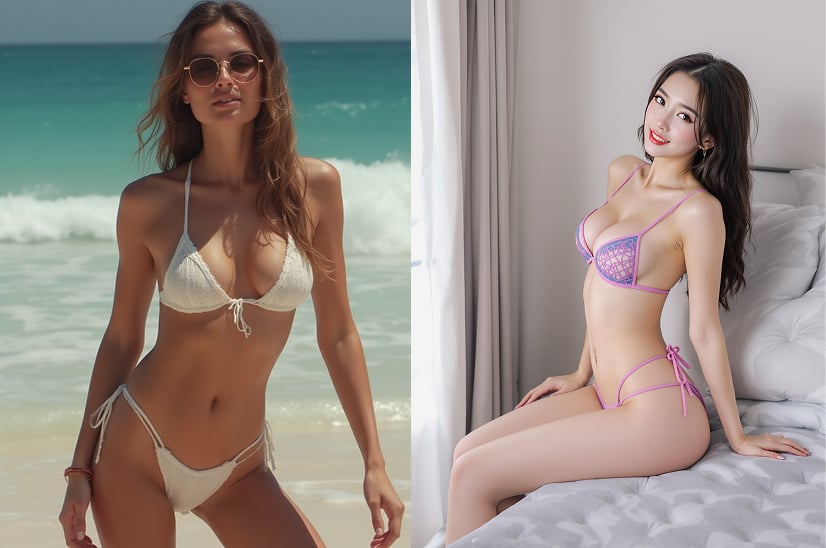
AI Bikini Generator
Visualize characters in bikinis from photos or text. Create virtual swimwear styles without design skills.
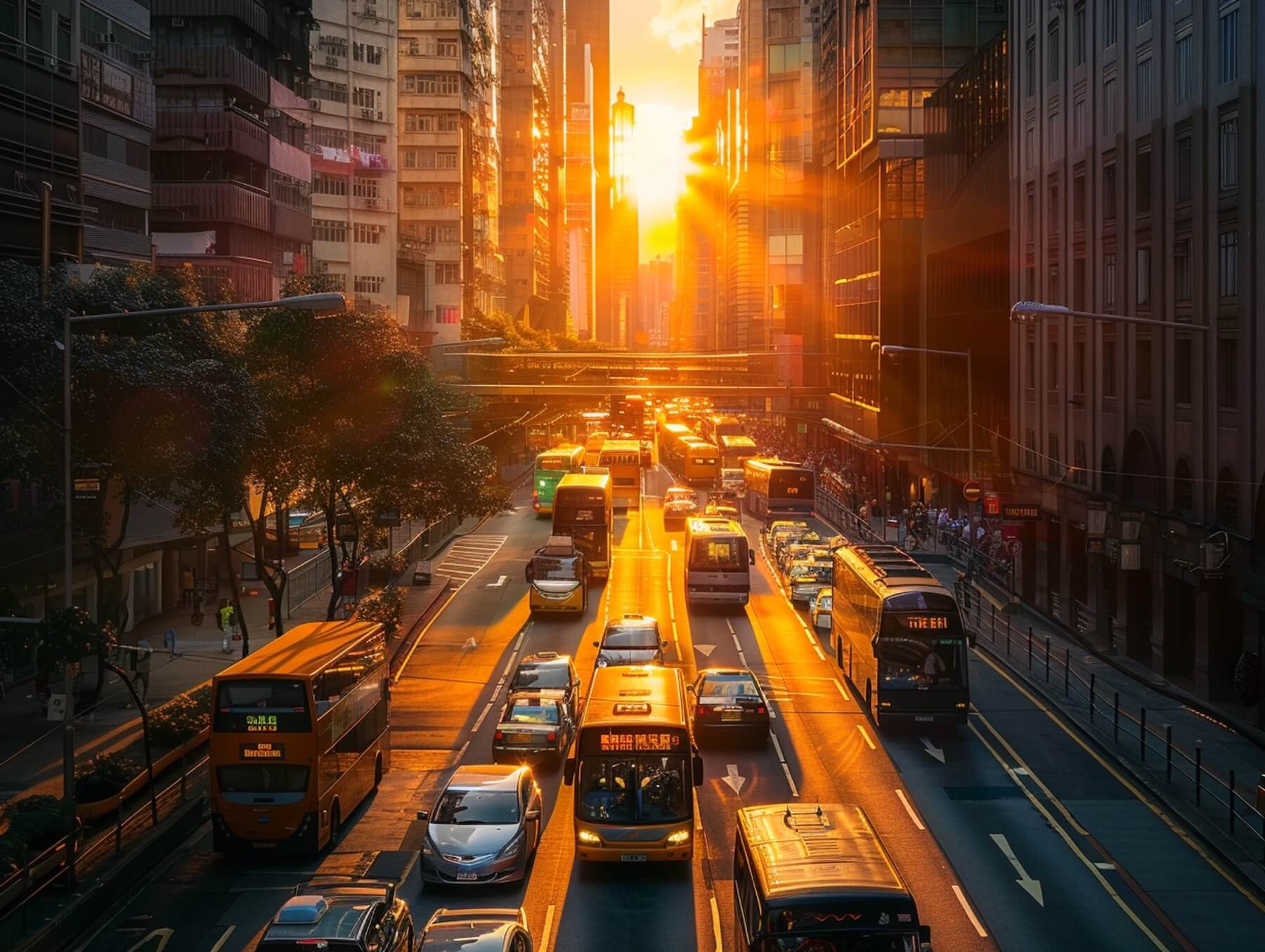
AI Photography Generator
Create realistic photo-quality images from text. Generate professional photography with various styles.
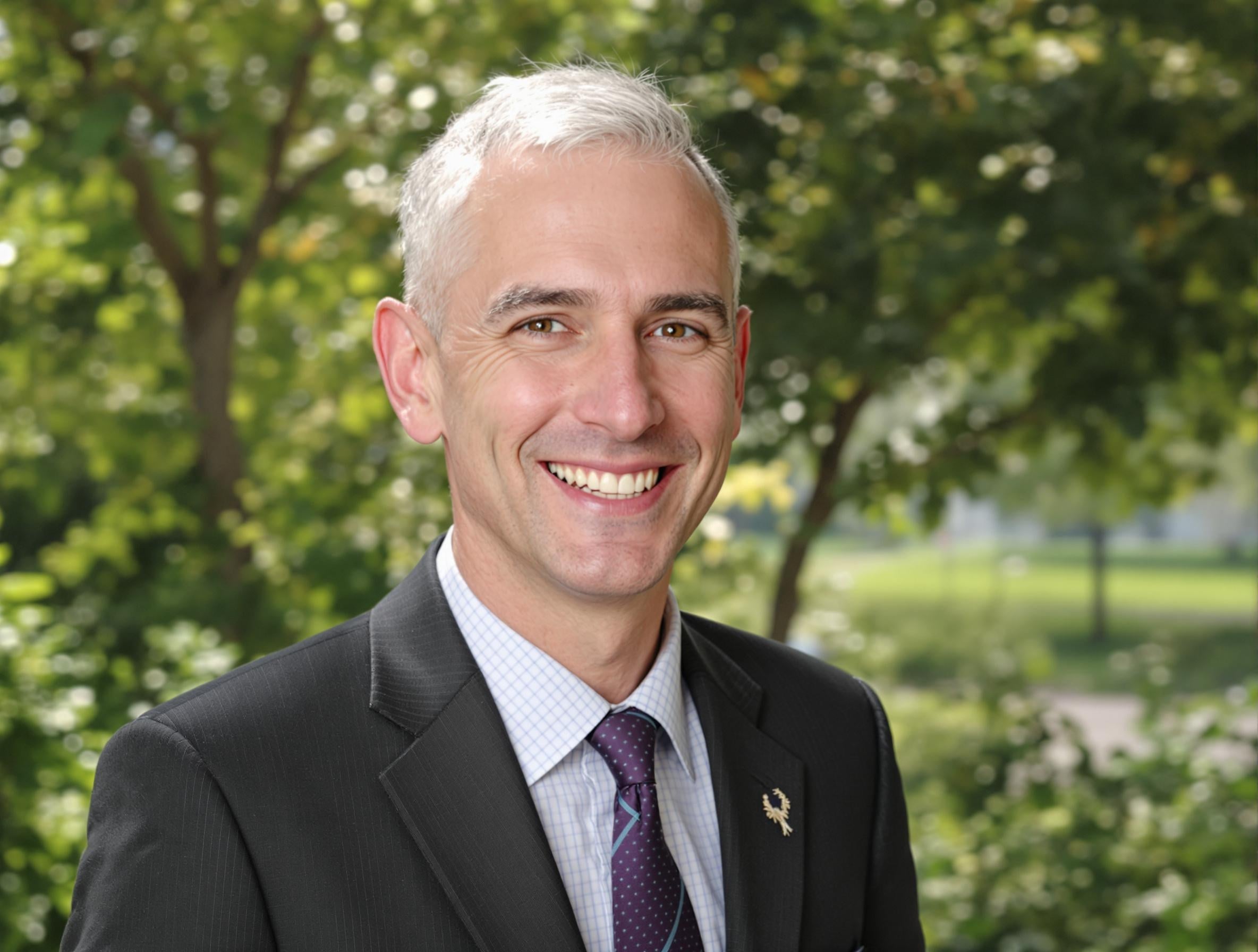
AI Smile Generator
Add warm smiles to any photo in seconds with our AI Smile Generator.
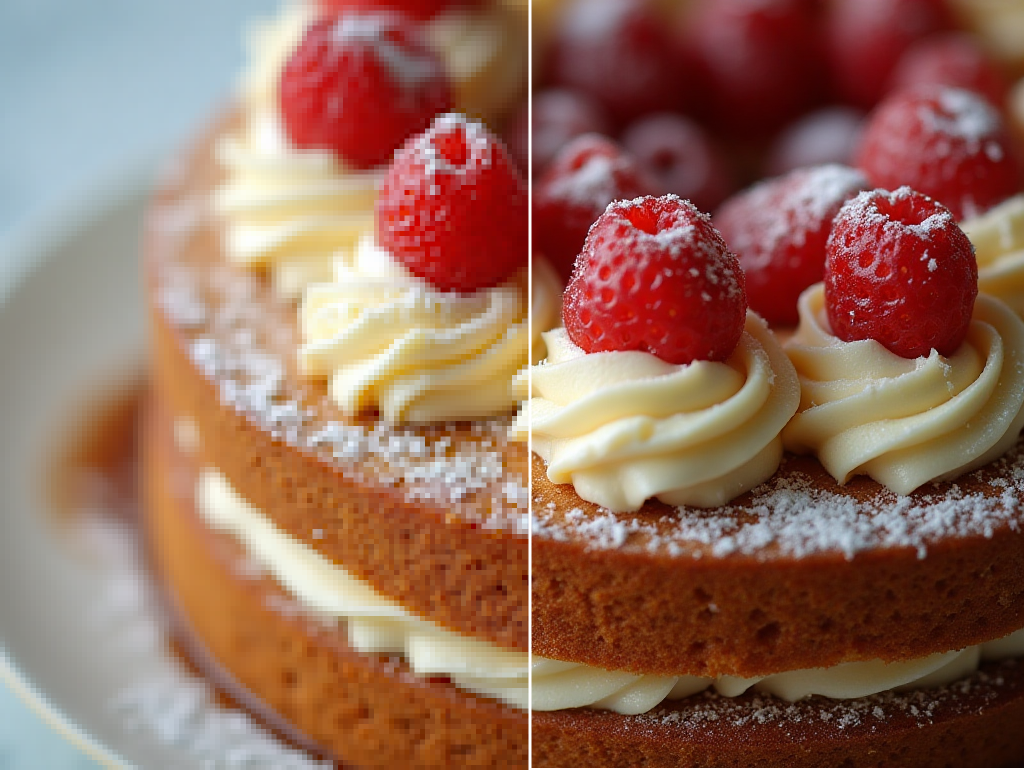
Unblur Image
Remove blur from your photos and enhance image clarity instantly using our AI-powered unblur tool.
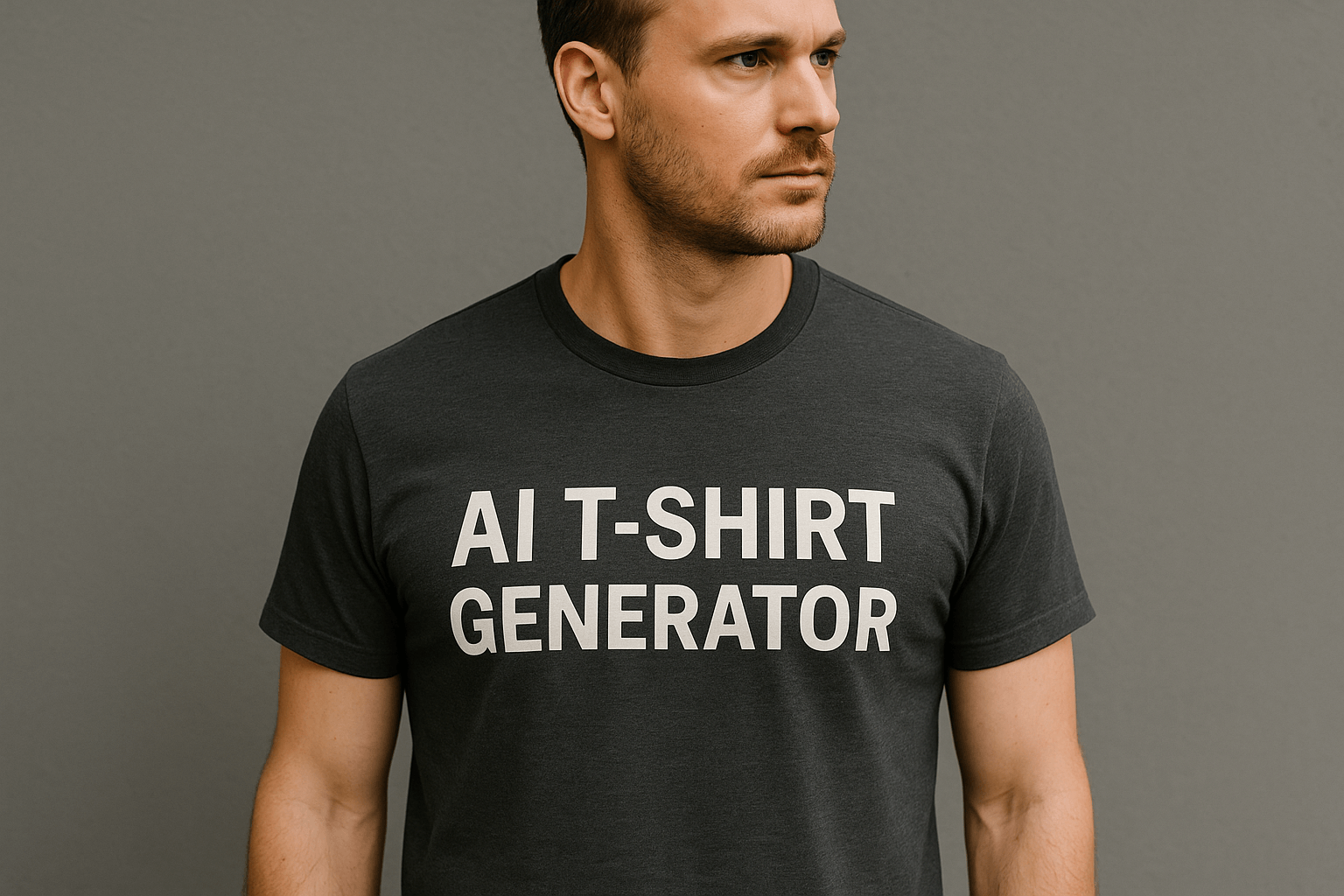
AI T-Shirt Design
Create unique t-shirt designs using cutting-edge AI technology. Perfect for creative businesses.
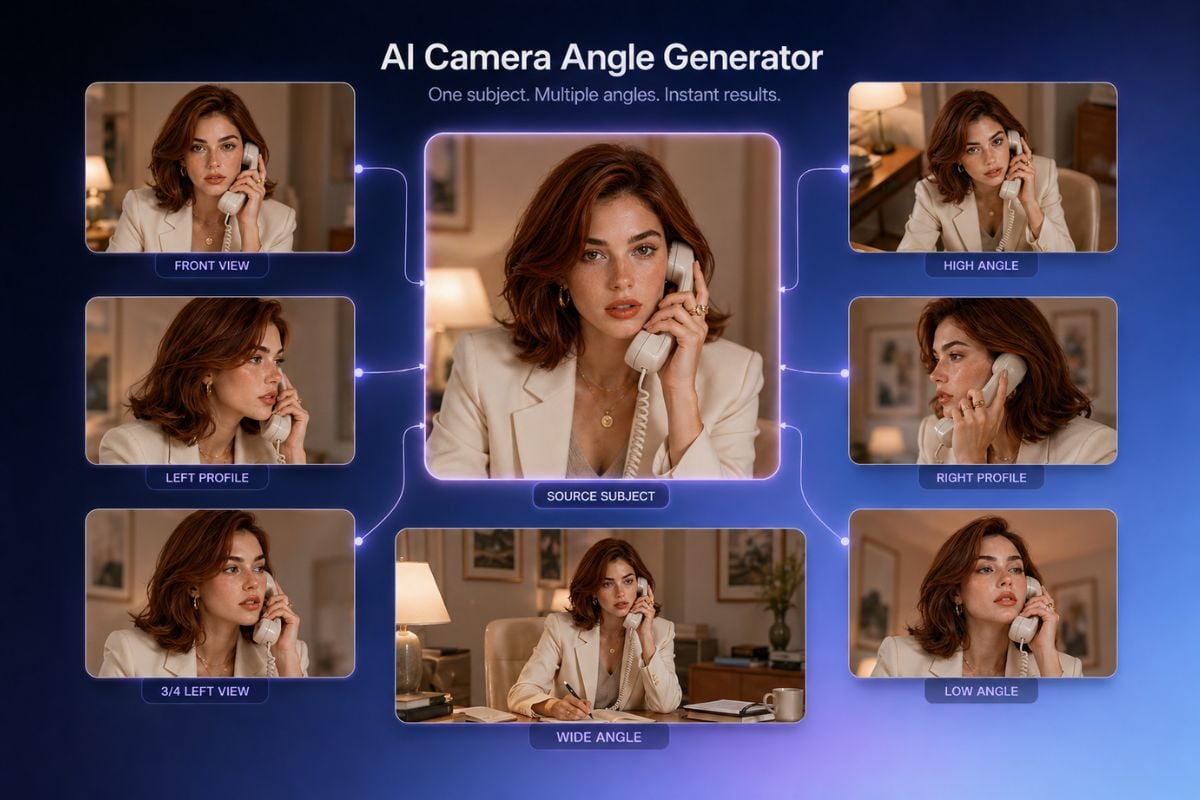
AI Camera Angle Control
Use Camera angle control to adjust perspective, create AI angles, and generate multiple angles from one photo with an easy visual controller.
How to use GoEnhance AI Image Generator
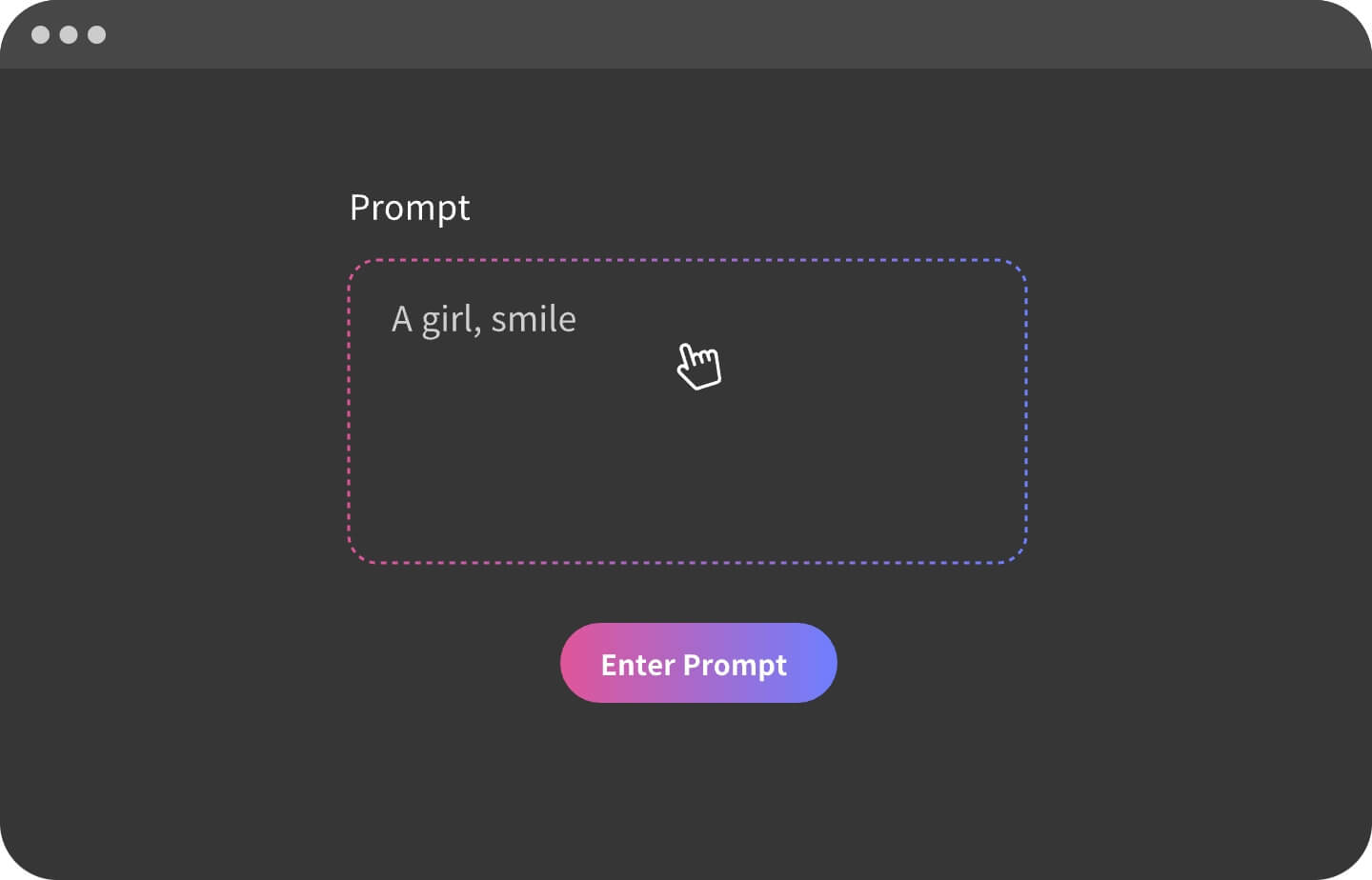
Enter prompt or upload image
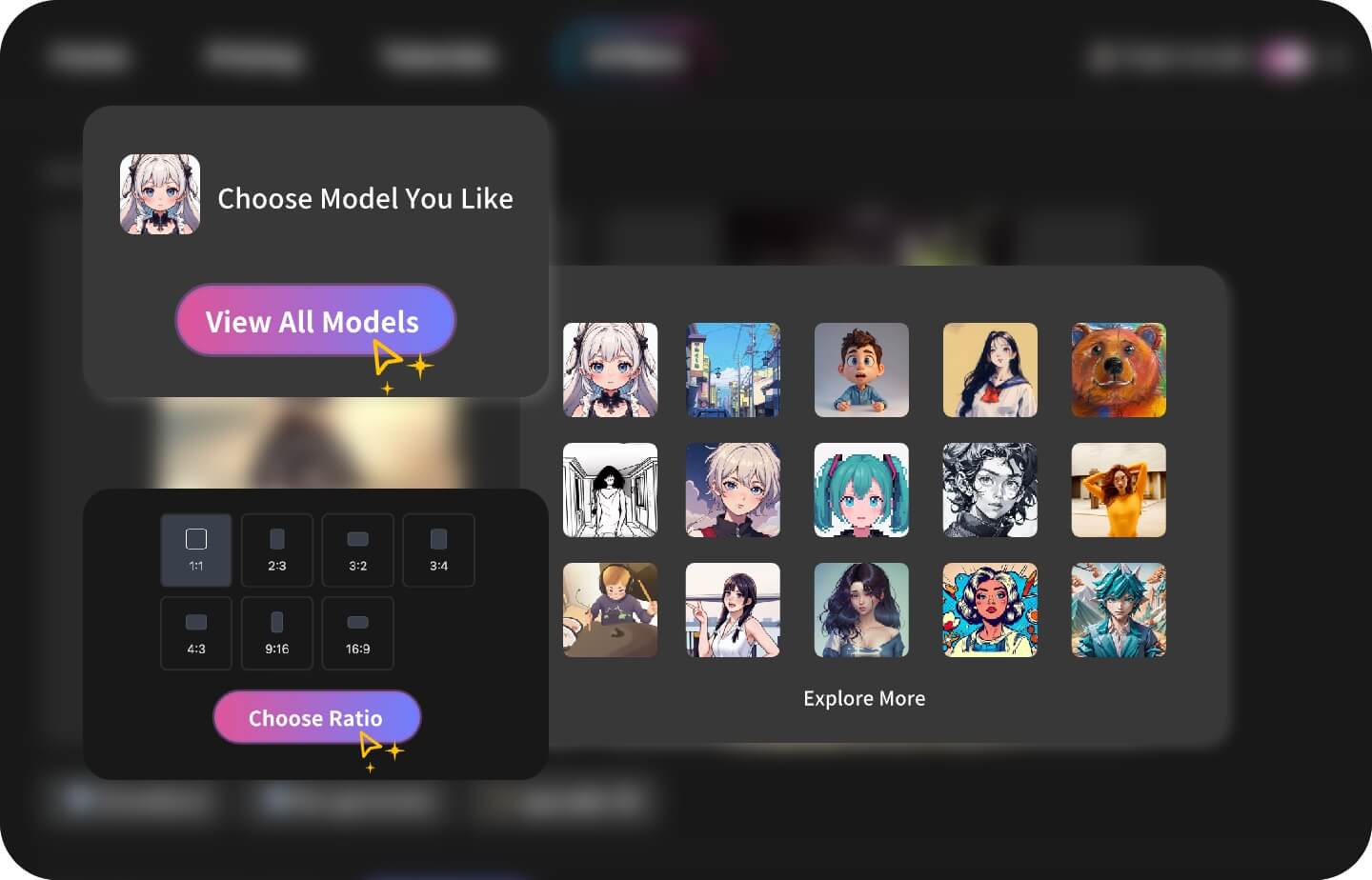
Adjust Parameters
Download and Share
Prompt Tips & Best Practices
Be Specific (Say Exactly What You Want)
Professional: Define the subject plus 2–3 concrete attributes (look, setting, key props). Plain: Don’t say “cool”—describe what “cool” looks like. Example: “a young programmer, black techwear jacket, neon rainy street, 3:2.”
Add Action (Make the Scene Do Something)
Professional: Include a clear verb to lock the moment (typing, pouring, running). Plain: Tell it what’s happening, not just what exists. Example: “typing on a compact keyboard, reflections on the desk, focused expression.”
Choose Your Shot (Angle & Lens)
Professional: Specify shot type and perspective for consistent framing. Plain: Tell it how to shoot the scene. Example: “low-angle medium shot, 35mm lens, shallow depth of field (f/1.8).”
Control Lighting & Color (Mood in One Line)
Fine-tune lighting and color grading to control the overall atmosphere. Plain: Pick a light and a color vibe. Example: “neon magenta/cyan rim light, soft haze, cinematic color grading.”
Choose Format Early (Ratio + Output Use)
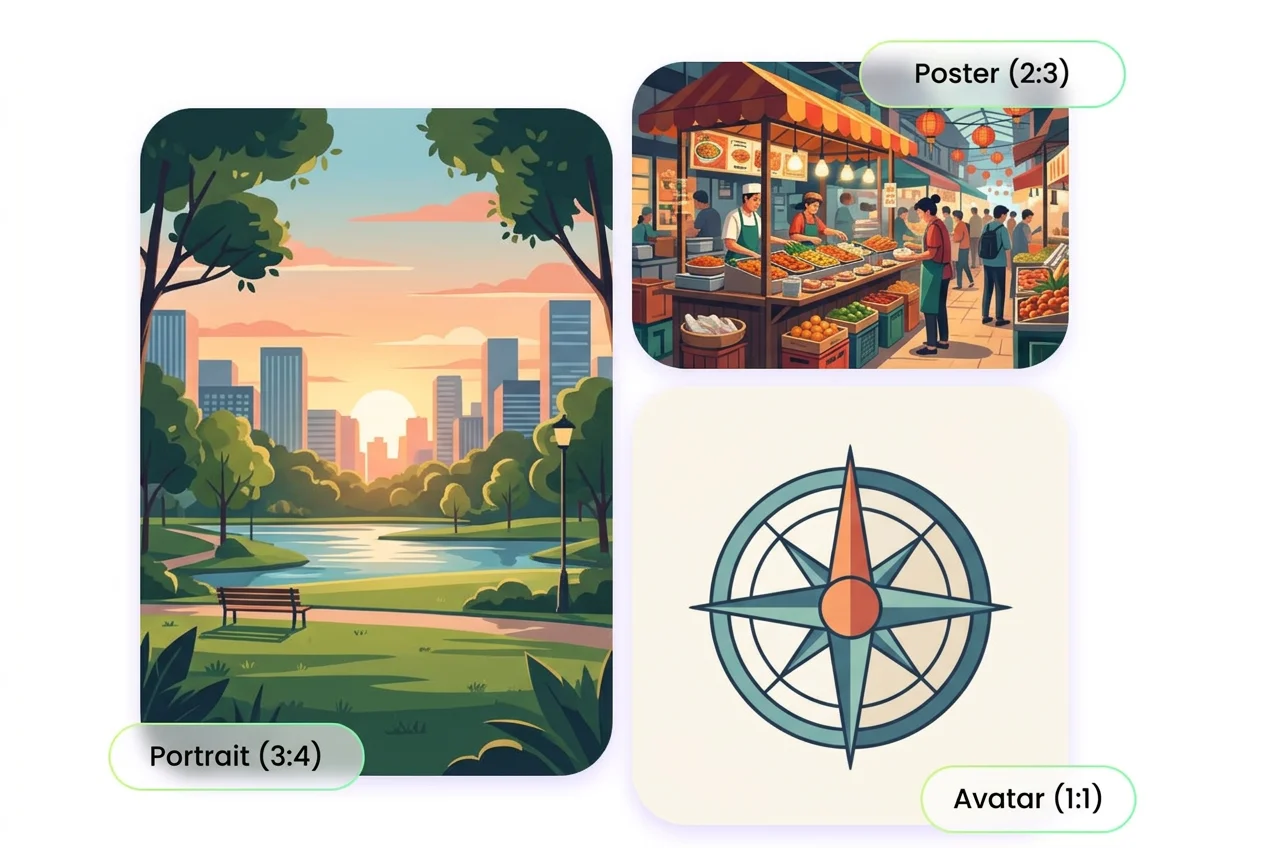
Pick an aspect ratio that fits the output slot—no trimming, no surprises. Plain: Pick the size you’ll actually post. Example: “1:1 for avatar, 9:16 for story, 3:2 for hero image.”
Use Negative Prompts (Prevent Common Failures)
Professional: Add exclusions to reduce artifacts and unwanted content. Plain: List the mistakes you don’t want. Example: “no extra fingers, no deformed hands, no blurry face, no text.”
Features of GoEnhance AI Image Generator
Advanced AI Technology
Diverse Style Options
High-Resolution Output
User-Friendly Interface
Fast Generation
Free tier
You may want to know
Is the AI Image Generator free to use?
Can I use the generated images for commercial purposes?
How does the AI generate images from text?
Can I customize the generated images?
How long does it take to generate an image?
How do I ensure the best results from the AI Image Generator?
How can I get high-quality prompts with the AI Image Generator?
How can I share the images I create with the AI Image Generator?
What image formats can I download?
How do I keep a character consistent across multiple images?
How is Text to Image different from Image to Image in GoEnhance?
How do I avoid common issues like extra fingers or messy faces?
Can I use AI-generated images for brand assets or product marketing?
Can I animate a generated image into a video using GoEnhance?
More than AI Image Generator
GoEnhanceAI goes beyond simple text to image transformation. Our platform offers advanced features for creating AI-generated videos, video to Animation, tailored to both creative and professional needs.With GoEnhanceAI, you can create high-quality, AI-generated videos that stand out. Enhance your visual content seamlessly and meet the growing demands of digital media.
Try GoEnhanceAI For FreeDiscover more:
- AI Clothes Remover
- Double Chin Remover
- AI Dragon Generator
- Word Art Generator
- AI Baby Generator
- AI Interior Design
- AI Avatar Generator
- ChatGPT Image Editor
- AI Relight
- Fire Text Generator
- Horizontal to Vertical Photo Converter
- Make AI Photo Realistic
- Remove Filter from Photo
- AI YouTube Thumbnail Maker
- Remove Glare from Photo
- Photo Colorizer
- AI Anime Background Generator
- AI Labubu Generator
- Holiday Meme Generator
- AI Palm Reading
- Football Uniform Creator
- Twitch Logo Maker
- Blueprint Maker
- Hug My Younger Self
- AI Animal Hybrid Generator
- Chat to Image
- AI Car Generator
- Edit Text in Image
- AI Jewelry Generator
- Body Beauty Enhancer
- Add Text To Image
- AI Meme Generator
- AI Image Replacer
- Face Morph
- Image to Anime
- Realistic AI Image Generator
- AI Image Reimagine
- AI Image Variation Generator
- Label Maker
- Ambigram Tattoo Generator
- Zootopia Font Generator
- Gorilla Tag PFP Maker
- YouTube Profile Picture Maker
- Invert Image Color
- AI Remove Glasses From Photo
- Desktop Wallpaper Creator
- Red Eye Remover
- AI Face Slimmer
- Family Crest Generator
- Discord PFP Maker
- AI Hourglass Body
- AI Villain Generator
- AI Font Generator
- AI Monster Generator
- Anime PFP Maker
- Lock Screen Maker
- Add People to Photos
- Change Color of Image
- AI Collage Generator
- AI Mockup Generator
- AI Family Photo Generator
- AI Flyer Maker
- AI Brat Generator
- AI Cat Image Generator
- AI Minecraft Skin Generator
- Cartoon Character Generator
- AI CAD Drawing Generator
- AI Clothes Swap
- AI Uniform Generator
- Virtual Try on Hairstyle
- AI Glasses Try On
- Virtual Hair Color Try On
- AI Flat Lay Clothing Photography
- Virtual Clothes Try On
- AI Kawaii Generator
- AI Pet Portrait Generator
- AI Beauty Filter
- AI Infographic Generator
- AI Cocktail Generator
- AI Vintage Photo Generator
- AI 3D Model Generator
- AI Christmas Wallpaper
- AI PNG Maker
- Skin Color Changer
- AI Object Remover
- Goth AI Generator
- Image Watermark Remover
- AI Body Generator
- AI Jersey Generator
- AI Image Extender
- FREE AI Character Generator Online from Text and Image
- AI Map Generator
- AI Christmas Card Generator
- AI Mascot Generator
- Dark Fantasy AI Generator
- Texture AI Generator
- Online Graffiti Generator
- AI Sprite Generator
- AI Waifu Generator
- AI Outfit Generator
- Italian Brainrot Generator
- AI Tattoo Generator
- AI Flag Generator
- AI Selfie Generator
- Free 3D Text Generator
- AI Floor Plan Generator
- SpongeBob Meme Generator
- AI Wallpaper Generator
- AI Human Generator
- DnD Map Generator
- Coat of Arms Maker
- Unblur Image
- AI T-Shirt Generator: Create Unique Designs Instantly
- AI Bikini Generator
- AI Smile Generator