
Top 11 Best and Free Kapwing Alternatives in 2026
- Part 1: Quick Comparison
- Part 2: How I Tested These Kapwing Alternatives
- Part 3: Why People Look for Kapwing Alternatives
- Part 4: The 11 Kapwing Alternatives I Tested
- 1. GoEnhance AI — Best when your workflow starts before the timeline
- 2. Canva — Template-based social videos
- 3. CapCut — Fast short-form editing with captions built in
- 4. VEED — Browser-based editing focused on captions and light cleanup
- 5. Clipchamp — Best simple editor for Windows-friendly workflows
- 6. Descript — Text-based editing for talking-head videos
- 7. DaVinci Resolve — A free editor for more advanced projects
- 8. Shotcut — A simple open-source option for basic desktop editing
- 9. OpenShot — Best beginner-friendly desktop editor
- 10. InVideo — A solid pick for template-based promo and explainer videos
- 11. FlexClip — Simple browser-based promo videos
- Part 5: How I Pick Between These Kapwing Alternatives
- Part 6: Pricing, Limits, and What Stops Feeling Cheap
- Part 7: Final Take
Kapwing is a browser-based video editor that’s popular because it’s easy to start—upload a clip, add captions, trim, and export—without installing heavy software.
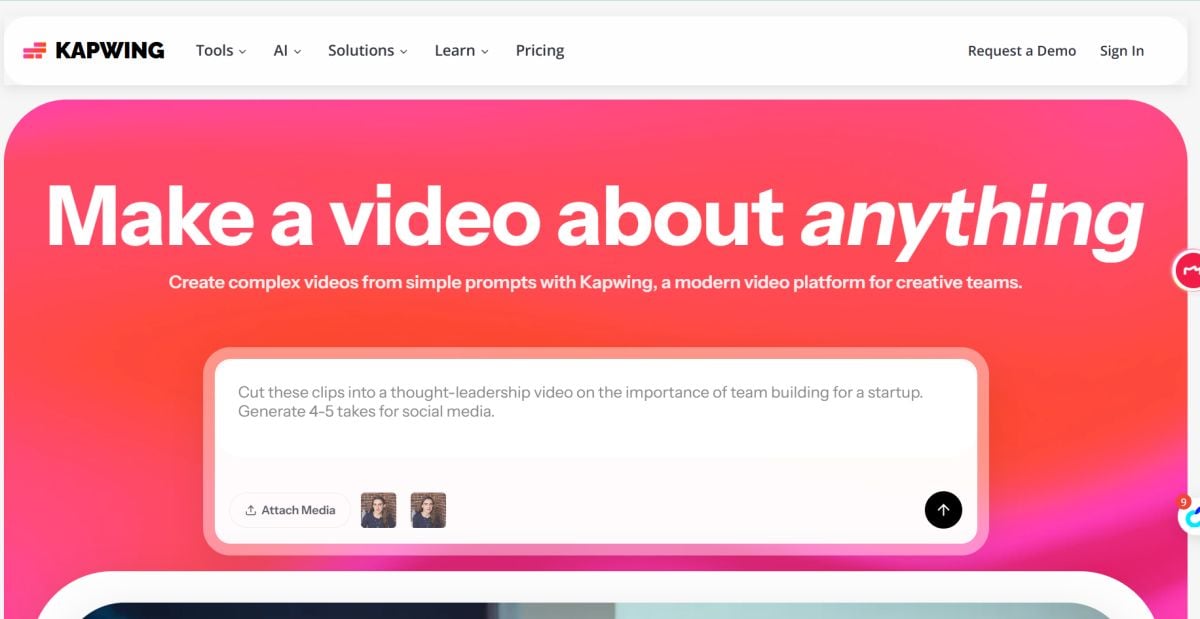
That ease is exactly why so many people start with it.
If you're looking for Kapwing alternatives, you're probably not trying to replace every part of your workflow.
You're trying to replace the annoying part.
Maybe that's subtitle cleanup. Maybe it's browser editing that starts to feel cramped. Maybe it's the moment you realize you are opening one tool to cut clips, another to restyle footage, and a third to turn a still image into something that actually moves.
Kapwing still does a lot right. Fast edits. Quick subtitles. Easy resizing. Shared links. But “good for quick browser edits” and “best fit for how I work now” are not always the same thing.
Part 1: Quick Comparison
Not every Kapwing alternative replaces Kapwing in the same way. Some are close substitutes for quick browser editing, subtitles, and templates. Others make more sense when your workflow has already shifted—toward brand design, deeper editing, or motion work that starts before the timeline.
If you’re short on time, this table is the quickest way to compare the options.
| Tool | Best for | Free option | Why it’s a strong pick |
|---|---|---|---|
| GoEnhance AI | fast AI video workflows (image/video → video styles) | free credits / trial-style access | quick results, modern AI-first flow |
| Canva | templates + brand-friendly social edits | free plan | easiest for teams + assets |
| CapCut | TikTok/Reels style edits + captions | free plan | speed + auto captions |
| VEED | captions + browser editing | free plan / trial | good subtitle workflow |
| Clipchamp | simple Windows-friendly browser editing | free plan | straightforward trimming / export |
| Descript | text-based editing + podcasts | free plan / trial | edit like a doc |
| DaVinci Resolve | serious editing for free | free plan | pro-grade timeline |
| Shotcut | lightweight desktop editor | free | simple + open-source |
| OpenShot | beginner-friendly desktop editor | free | drag-and-drop ease |
| InVideo | marketing-style videos | free plan / trial | templates + stock workflow |
| FlexClip | quick promo videos in browser | free plan | fast “good enough” exports |
Part 2: How I Tested These Kapwing Alternatives
I focused on tools that you can start using for free and that reliably speed up real publishing workflows: captions, shorts, promos, and repurposing.
My test checklist:
- Speed to publish: raw clip → shareable output
- Caption workflow: auto captions + easy corrections
- Export reality: watermark, resolution, and time limits
- Ease of use: can a non-editor ship something decent?
- Trust signals: clear product positioning, stable experience, predictable results
Part 3: Why People Look for Kapwing Alternatives
Most people do not start looking for a Kapwing alternative because Kapwing suddenly became bad.
They start looking because the part that used to feel convenient starts feeling small.
Browser editing is great when the job is simple: trim a clip, resize it, add subtitles, publish fast. That is a big part of why Kapwing became so popular. But once projects get longer, exports get heavier, or the workflow gets more layered, that same simplicity can start to feel cramped.
Sometimes the issue is caption cleanup. Sometimes it is performance. Sometimes it is collaboration that sounds easy until several people are reviewing versions, changing text, and trying to keep assets organized. And sometimes the problem shows up even earlier than that: you do not just need to edit footage, you need to create better raw material before the edit even begins.
That is why this list is not really built around one question.
It is built around a more useful one: what exactly are you trying to replace?
For some people, the best alternative is the closest match to Kapwing—another fast, browser-first editor with captions, templates, and quick export. For others, the right move is a workflow shift: a tool that handles brand design better, desktop editing better, or motion creation that starts from an image instead of a timeline.
That distinction matters more than feature count.
Part 4: The 11 Kapwing Alternatives I Tested
1. GoEnhance AI — Best when your workflow starts before the timeline
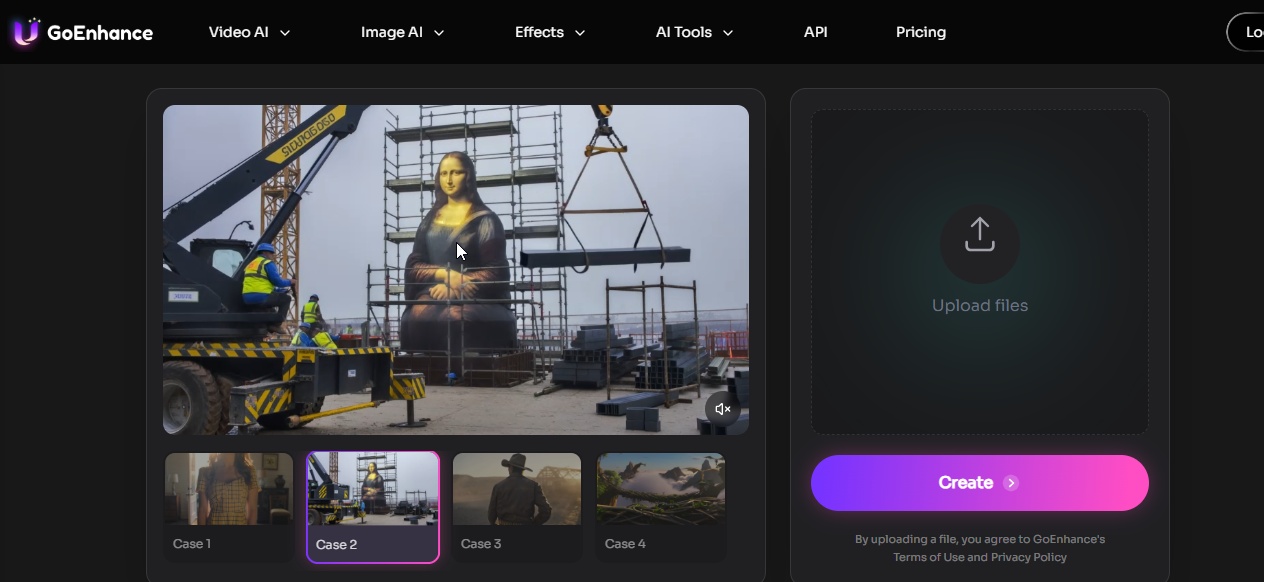
GoEnhance makes the most sense when your content starts before the timeline.
That is why I would not pitch it as “the new Kapwing.” The more useful way to think about it is this: Kapwing is strongest once you already have something to cut, subtitle, resize, or share. GoEnhance gets interesting when you still only have raw ingredients. A product image. A character still. A rough scene idea. An older clip that needs a different visual treatment.
If I gave every tool the same job—one product image, one portrait, one old clip, make me something I can actually post—the editor-first tools and the generation-first tools would not even be competing on the same part of the workflow. GoEnhance helps create the motion layer earlier, using an AI video generator workflow for generation-first tasks, then a video-to-video tool when the clip needs restyling rather than rebuilding.
That is the part I like.
It also matters to say what GoEnhance does not replace cleanly. If your team depends on comments, shared workspaces, and a familiar browser editing routine, GoEnhance is not the neatest drop-in swap for Kapwing. It is better treated as a workflow upgrade for image-led, style-led, or animation-led content work.
- Best for: creators, marketers, meme-style experiments, quick promos, motion-first workflows
- What worked well: rapid iteration, visual variation, stronger results when the starting asset is static
- Watch-outs: not the neatest 1:1 Kapwing replacement for teams that mainly want browser editing and collaboration
2. Canva — Template-based social videos
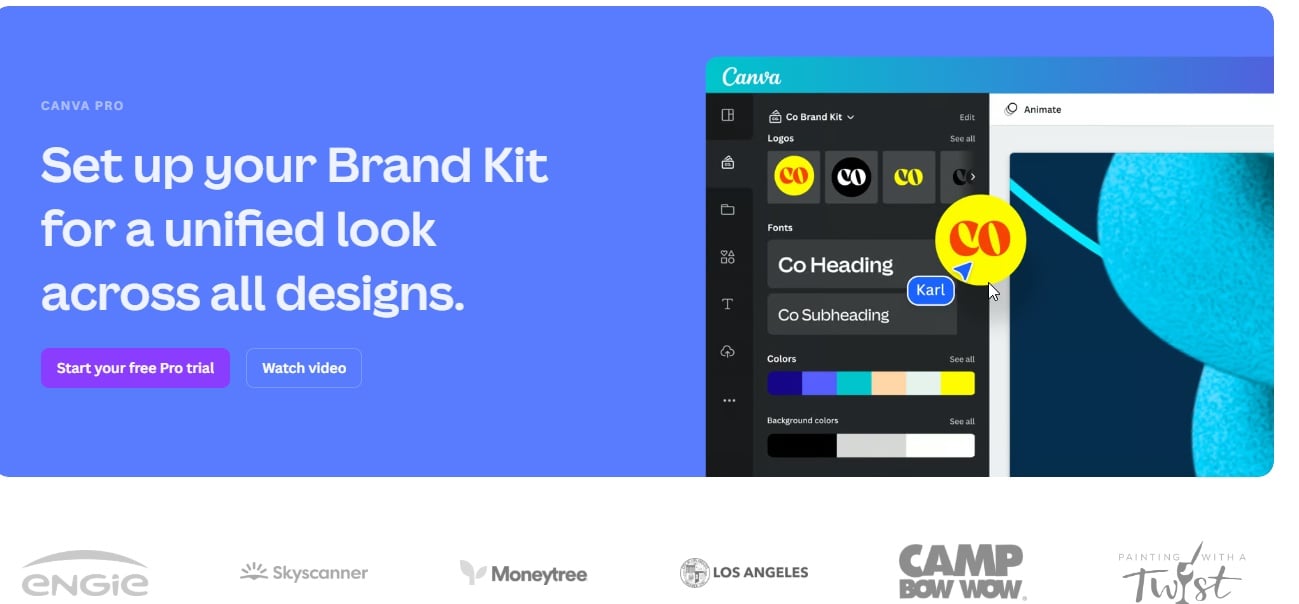
When the edit is mostly text, assets, and simple motion, it is hard to beat.
- Best for: social posts, promos, brand kits, teams
- What worked well: templates, asset library, quick resizing
- Watch-outs: not a deep editor for complex motion or heavier timelines
3. CapCut — Fast short-form editing with captions built in
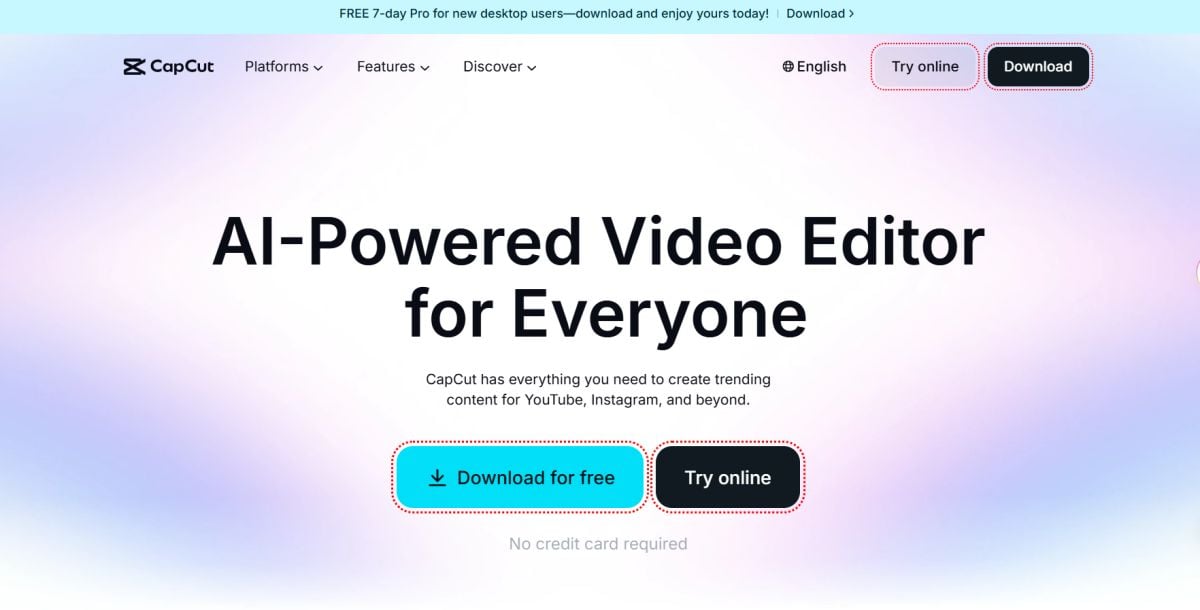
CapCut makes the most sense when speed matters more than polish and you are turning around short-form clips for social.
It is one of the easiest tools here for trimming clips, adding auto captions, dropping in effects, and getting to a postable result quickly. That is a big reason it keeps showing up in creator workflows.
- Best for: TikTok, Reels, Shorts, caption-heavy social content
- What worked well: fast editing, auto captions, quick social-ready output
- Watch-outs: less appealing if you want a calmer, team-friendly workflow or a more traditional editor feel
4. VEED — Browser-based editing focused on captions and light cleanup
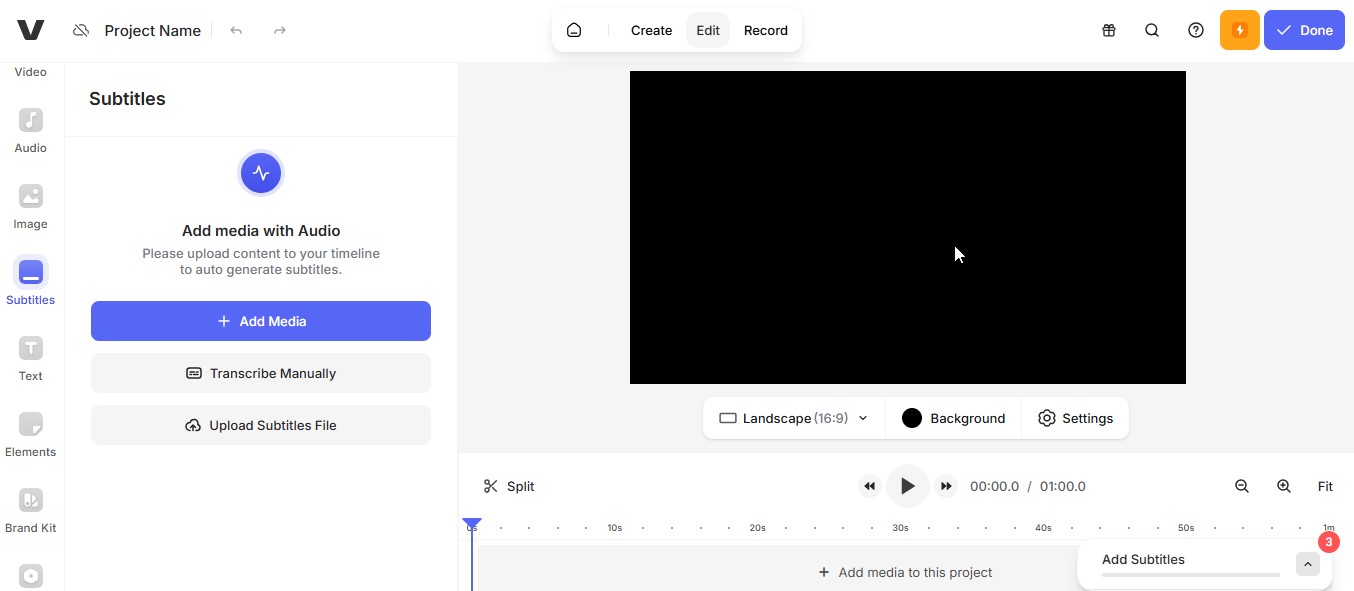
I like it for quick subtitle work and lightweight edits without installing anything.
- Best for: subtitles, fast browser editing, lightweight collaboration
- What worked well: captions + simple edits in one place
- Watch-outs: free tiers commonly include export limits and watermarks
5. Clipchamp — Best simple editor for Windows-friendly workflows

It’s practical: trim, add titles, drop in music, export. I recommend it when someone on a team needs results quickly.
- Best for: simple edits, business clips, beginner workflows
- What worked well: low friction, clean interface
- Watch-outs: limited depth compared to full NLEs
6. Descript — Text-based editing for talking-head videos
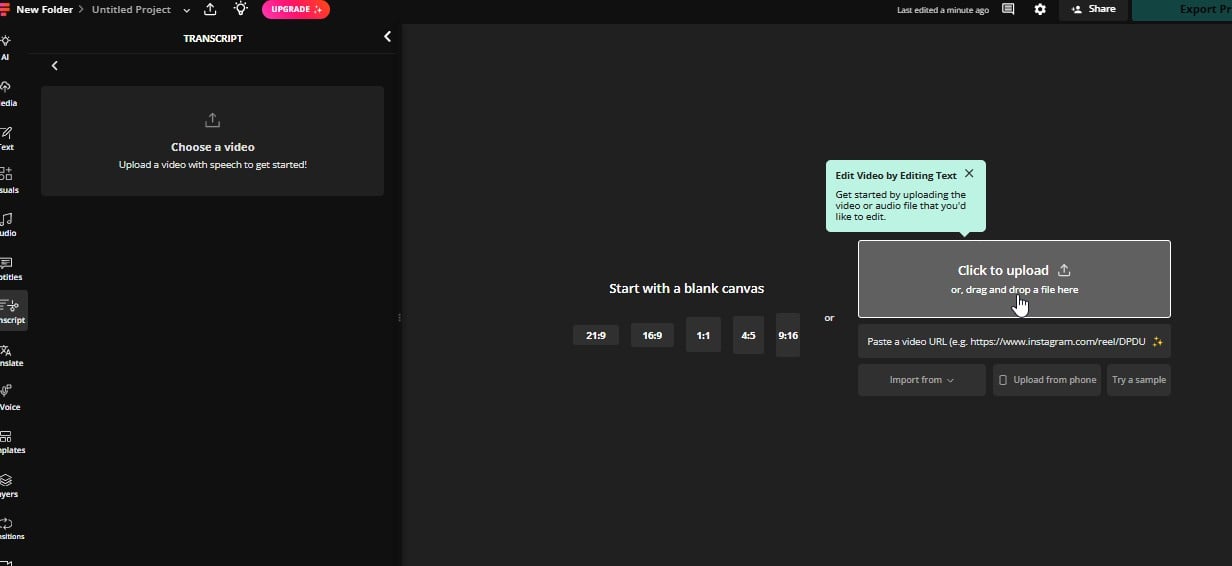
It’s great for removing filler words, tightening scripts, and making clips from long recordings without scrubbing timelines all day.
- Best for: podcasts, interviews, talking-head videos, repurposing
- What worked well: text editing, quick cleanup, clip extraction
- Watch-outs: free tiers can be limited; some features require upgrades
7. DaVinci Resolve — A free editor for more advanced projects
I use Resolve when quality and control matter—YouTube projects, client-level timelines, proper color, and real audio tools.
- Best for: YouTube, client work, advanced timelines, color
- What worked well: pro tools, stable workflow, high output quality
- Watch-outs: learning curve + heavier system requirements
8. Shotcut — A simple open-source option for basic desktop editing
It’s not flashy, but it works: cut, layer audio, do basic transitions, export.
- Best for: offline editing, lightweight projects, simple timelines
- What worked well: flexibility, format support, no paywalls
- Watch-outs: UI feels less modern; effects are basic
9. OpenShot — Best beginner-friendly desktop editor
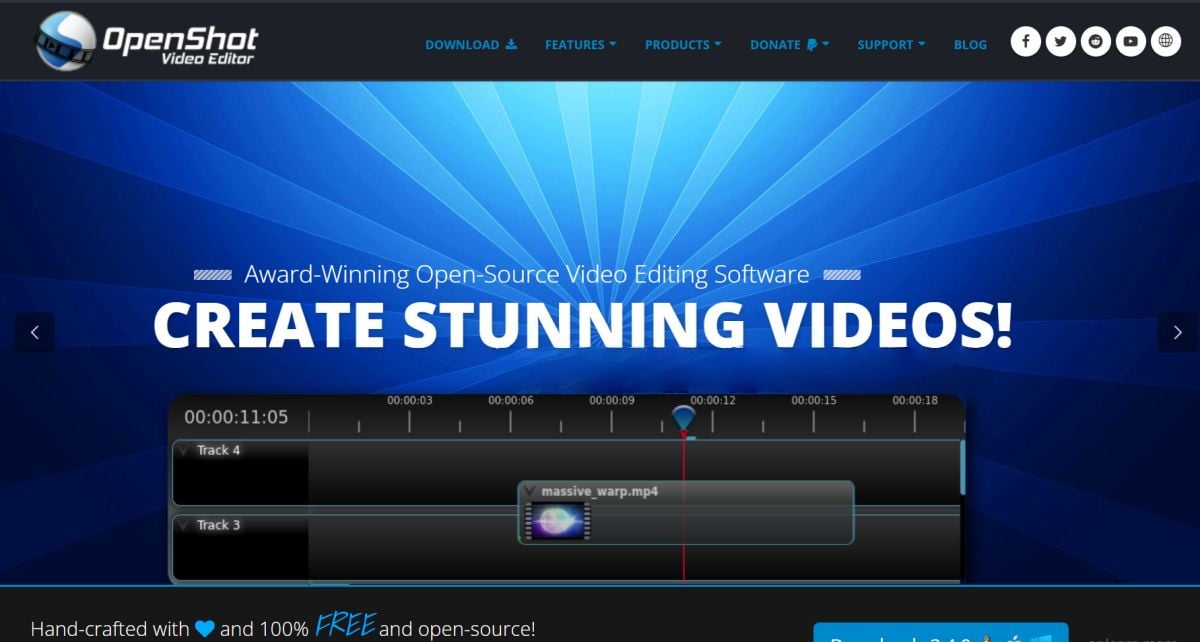
It’s a good pick for stitching clips, adding music, and exporting a clean result quickly.
- Best for: beginners, simple edits, quick stitching
- What worked well: approachable timeline, easy start
- Watch-outs: performance can vary on heavier projects
10. InVideo — A solid pick for template-based promo and explainer videos
I use it when speed matters more than custom editing—script → layout → export.
- Best for: marketing promos, ads, product explainers
- What worked well: template speed, stock workflow, fast assembly
- Watch-outs: free tiers often include watermarks and limits
11. FlexClip — Simple browser-based promo videos
It’s straightforward, quick, and gets you to a clean social clip fast.
- Best for: quick promos, small business content, social clips
- What worked well: speed, templates, low learning curve
- Watch-outs: advanced editing is limited; free exports may be capped
Part 5: How I Pick Between These Kapwing Alternatives
I do not pick from this list by asking which tool has the longest feature page.
I pick by asking where the friction shows up first.
If I already have footage and I mostly need fast cuts, subtitles, resizing, and social exports, I stay close to Kapwing. That usually means choosing the tools here that keep the browser-first, quick-turn editing feel.
If the work is more design-heavy—brand kits, templates, thumbnails, social graphics, and multi-format content—I lean toward the options that treat video as part of a broader content workflow, not just a standalone editor.
If I know I am going to need heavier editing, longer timelines, or more precise control, I stop pretending a light browser tool will be enough. That is where more edit-focused options start making more sense.
And if the job starts before the timeline—a still image, a product visual, a character frame, or a concept shot that needs motion—I stop looking for a one-to-one Kapwing replacement entirely. That is where a workflow-shift option like GoEnhance becomes more useful than a closer clone.
So the split I care about is pretty simple:
- closest replacement: best when you want something very close to Kapwing, just smoother, cheaper, or less annoying
- workflow shift: best when your process has changed and the real bottleneck is no longer basic browser editing
- budget fit: best when the tool still makes sense after limits, credits, seats, and add-ons start showing up
That framework has been more useful to me than chasing the biggest feature list.
Part 6: Pricing, Limits, and What Stops Feeling Cheap
The cheapest Kapwing alternative is often only cheap on day one.
After that, the real questions show up: watermarks, seat pricing, export limits, storage, AI credits, and whether the upgrade actually fixes the thing that annoyed you in the first place.
This is where the category gets sneaky.
A tool can look affordable on the homepage and still become expensive once you need:
- multiple export versions
- cleaner captions
- faster turnaround
- better-looking variations
- another teammate in the workflow
That is why “free” and “good value” are not always the same thing.
A better alternative is not just cheaper on paper. It shortens the path to something publishable.
Bottom line: The real cost of a Kapwing alternative is not just the subscription—it is how many extra steps you still have to buy back with time.
Part 7: Final Take
The best free Kapwing alternatives depend on whether you’re editing like a creator, a marketer, or a team—so match the tool to the job, not the hype.
If I had to keep only two tools in a free-to-start stack:
- GoEnhance AI for fast AI-assisted outputs and variations
- CapCut (or VEED) for caption-heavy social edits
Everything else earns its spot when you need templates (Canva), pro timelines (Resolve), or lightweight offline backups (Shotcut / OpenShot).
If your content usually starts with still assets instead of finished footage, GoEnhance is the one I would try first.